
Any phone can control the screen, with nothing to install. It only needs the same Wi-Fi as the laptop.
Before you start
- Tat Khalsa Pothi Desktop open on the laptop that runs the screen.
- A phone with a web browser. A camera helps for the QR code, but you can pair without one.
- The phone and the laptop on the same Wi-Fi, or a phone hotspot that both can join.
Step by step
Allow phone remotes
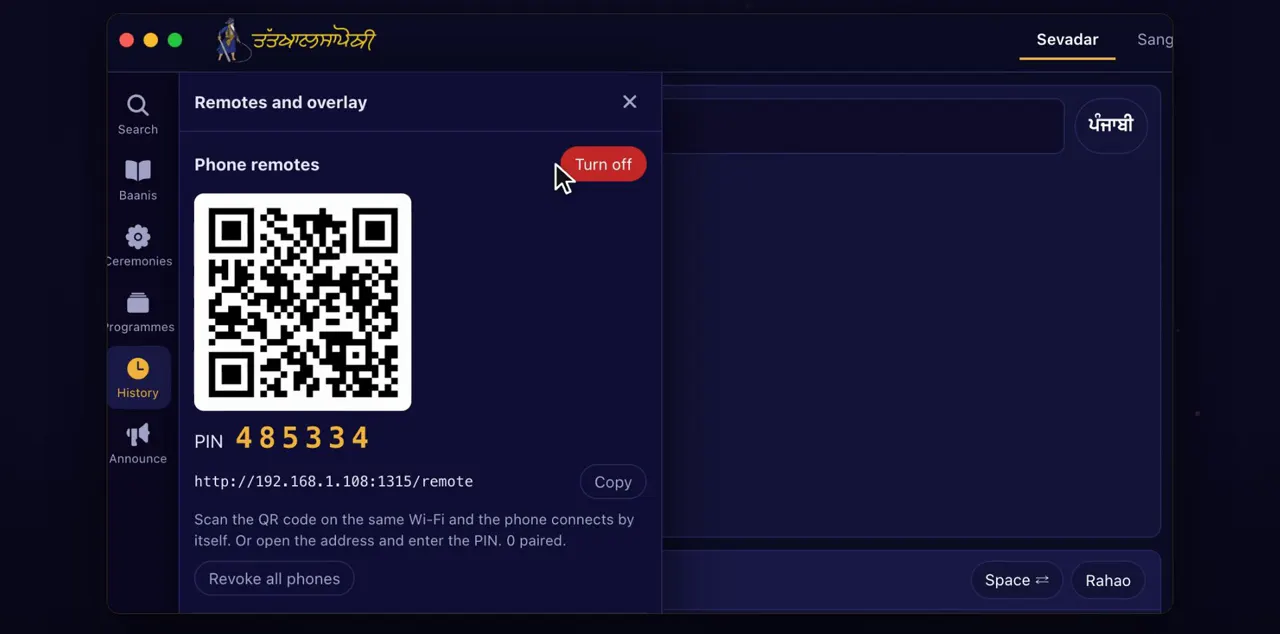
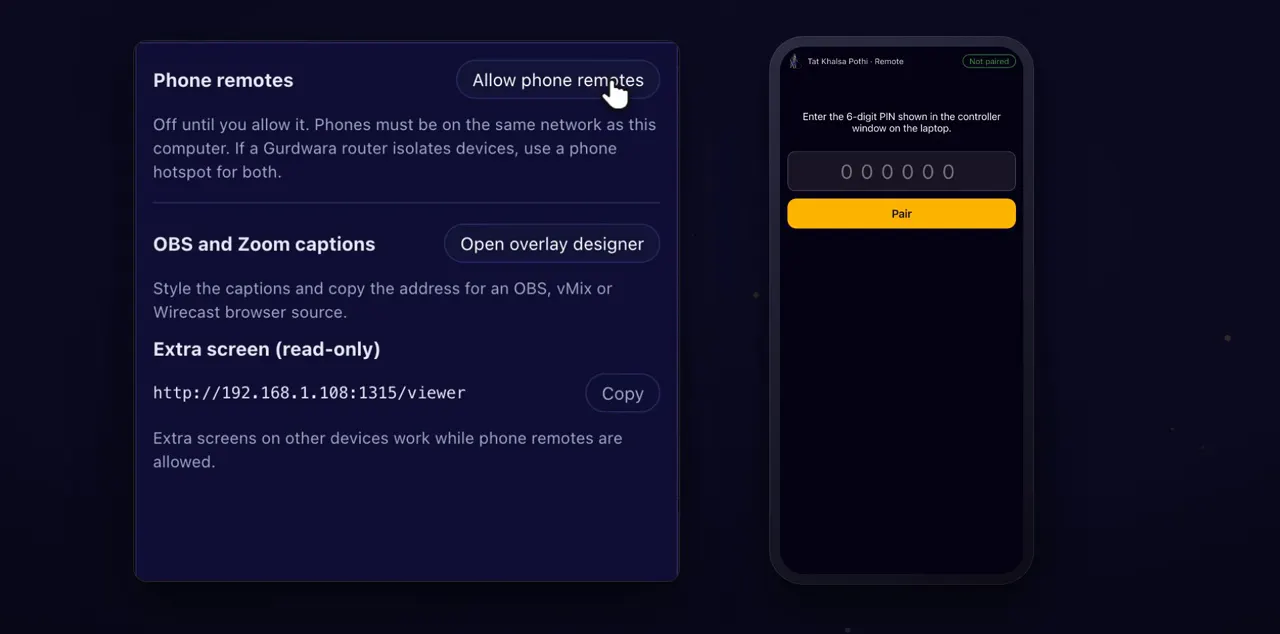
Open Remotes, and click Allow phone remotes. Phone remotes stay off until you do. A QR code, a PIN and an address appear.
Remotes is on the rail down the left of the window. Until then, the panel reads Off until you allow it. Once you click Allow phone remotes, the panel shows a 6-digit PIN, an address with a Copy button, a count such as 0 paired, and the buttons Revoke all phones and Turn off.
If your computer asks, allow it
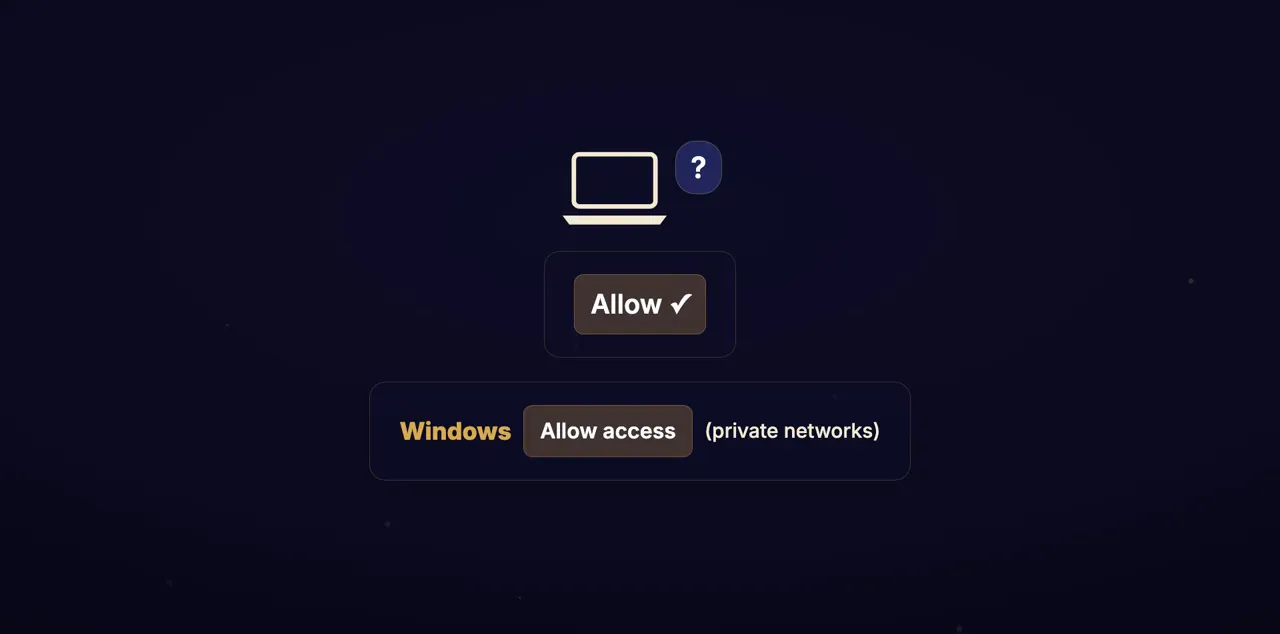
The first time, your computer may ask whether Tat Khalsa Pothi can accept connections. Allow it. On Windows, allow private networks.
On Windows the prompt has an Allow access button and boxes for private and public networks. A Mac only asks if its firewall is turned on, so you may see nothing at all.
Scan the QR code
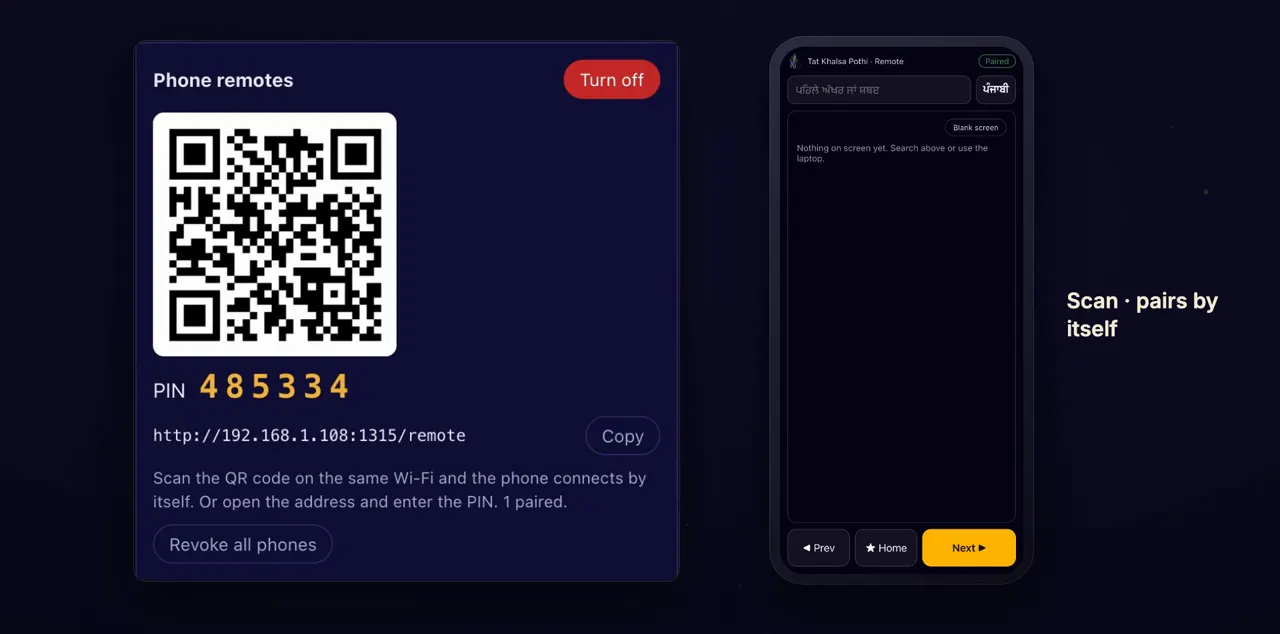
Point the phone's camera at the QR code, and open the link. The phone pairs by itself.
The link opens the remote in the phone's browser, with nothing to install. When it has paired, the top of the phone page says Paired, and the count in the Remotes panel goes up by one.
Or type the address and PIN
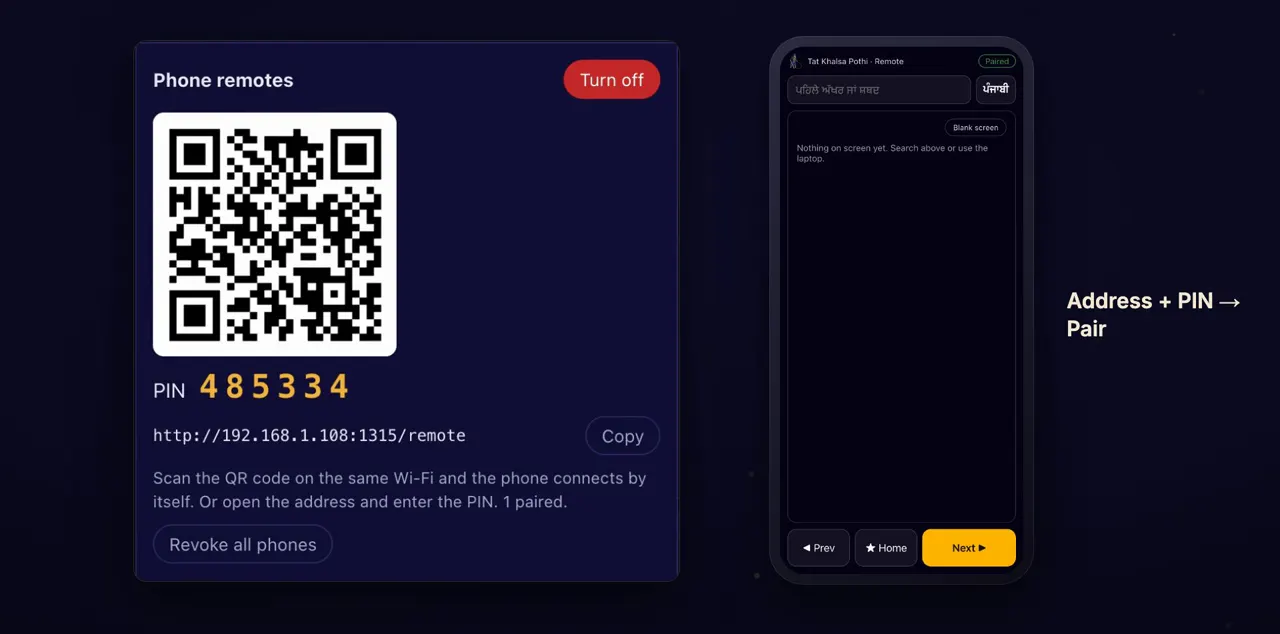
No camera? Type the address into the phone's browser, enter the PIN from the laptop, and tap Pair.
The address starts with http:// and ends in /remote, as shown in the Remotes panel. The phone asks for the 6-digit PIN shown in the controller window on the laptop. If it says Wrong PIN, check the digits against the laptop and try again.
What the phone can do
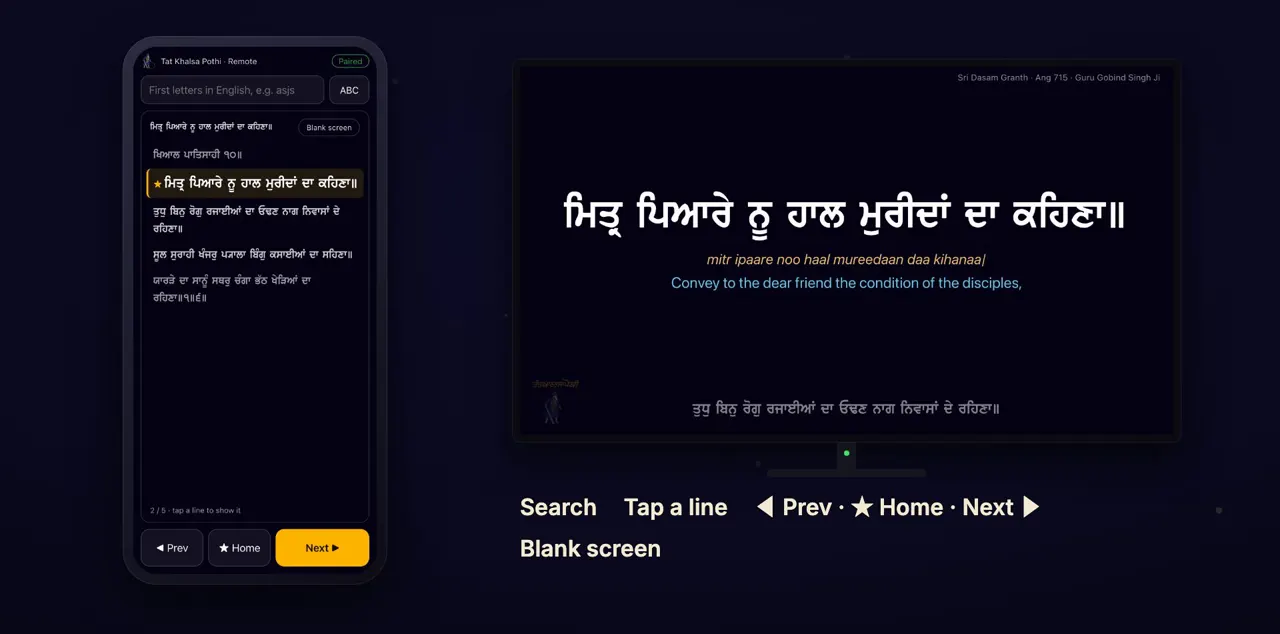
On the phone, search by first letters, and tap a result to show it. Tap any line to put it on the screen. Prev, Home and Next move through the lines, and Blank screen hides the display until you show it again.
The ਪੰਜਾਬੀ / ABC button switches how you type the first letters. In the open shabad, a star marks the home line and a tick marks each line already shown. While the display is hidden, the button reads Screen blank · Show; tap it to bring the display back.
Same Wi-Fi, or a hotspot
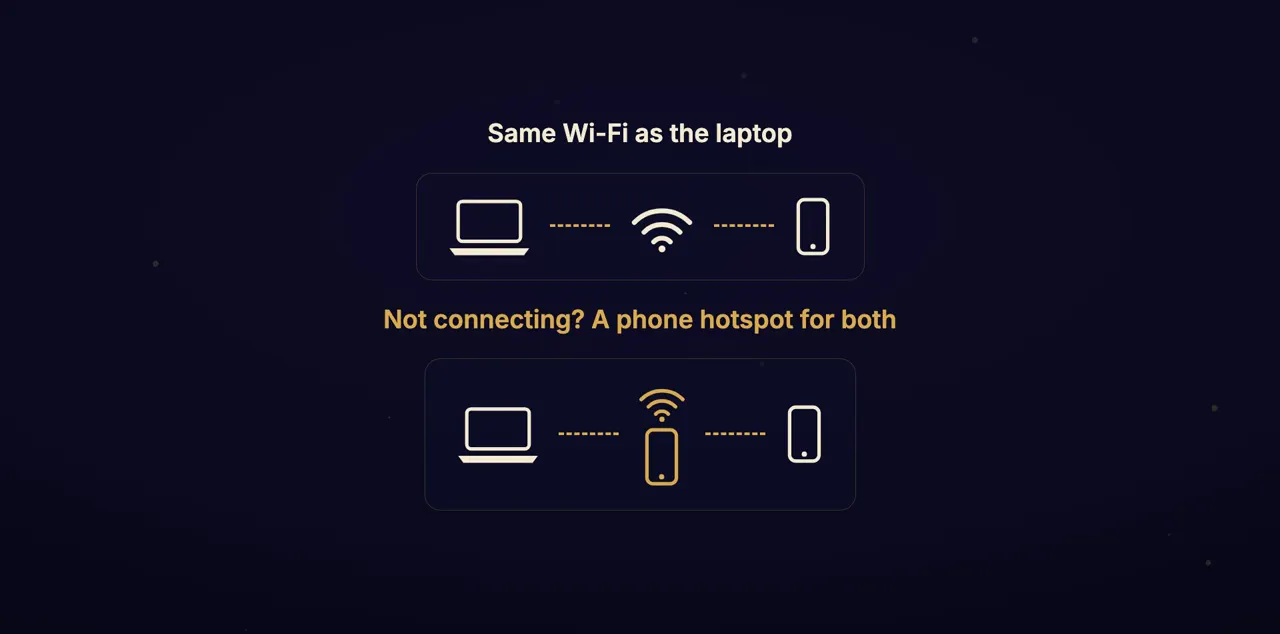
The phone must be on the same Wi-Fi as the laptop. Some Gurdwara routers keep devices apart. If the phone won't connect, turn on a phone's hotspot, and join both the laptop and the remote to it.
The phone that makes the hotspot can be the remote itself. In that case, join the laptop to that phone's hotspot.
Revoke all phones
When the programme ends, Revoke all phones disconnects every phone. Turn off stops phone remotes altogether.
After Revoke all phones, the panel says All phone sessions revoked and the count goes back to 0 paired. A phone that still has the remote open keeps its page until it next taps something; then it shows the PIN screen. After Turn off, the panel goes back to Off until you allow it.
Tips
- The app remembers that remotes are allowed, even after a restart. If you want them off between programmes, click Turn off.
- The PIN is new each time you turn phone remotes on, so read it from the laptop each time.
- A phone stays paired until you click Revoke all phones or Turn off, so it doesn't need the PIN again during the programme.
Questions
Do I need to install an app on the phone?
No. The remote opens as a page in the phone's browser. Scan the QR code, or type the address and the 6-digit PIN.
Can I control the screen from home, over the internet?
No. The phone remote works over the local network only. The phone must be on the same Wi-Fi as the laptop, or on the same phone hotspot.
The phone won't connect. What should I check?
Check that the phone and the laptop are on the same Wi-Fi, and that you allowed Tat Khalsa Pothi if your computer asked about connections. Some Gurdwara routers keep devices apart; if so, turn on a phone's hotspot and join both the laptop and the remote to it.
Can more than one phone be a remote?
Yes. The Remotes panel counts how many phones are paired, and Revoke all phones disconnects all of them at once.