
In the Display panel, you choose how Gurbani looks on the projector. Here's what you can change.
Before you start
- Tat Khalsa Pothi Desktop installed, with a projector or TV connected.
- A shabad open on the screen, so you can see each change as you make it.
Step by step
Themes
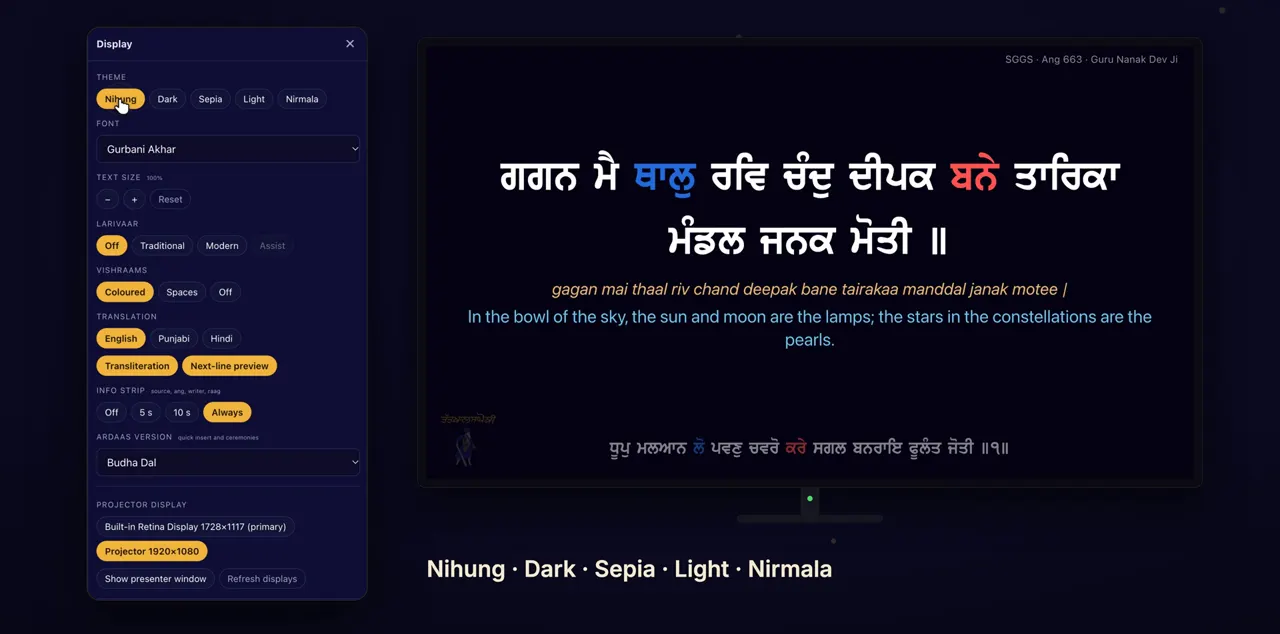
Click Display on the left, and choose a theme: Nihung, Dark, Sepia, Light or Nirmala.
Every change in Display shows on the projector straight away. Nihung, dark navy and gold, is the default theme.
Font and size
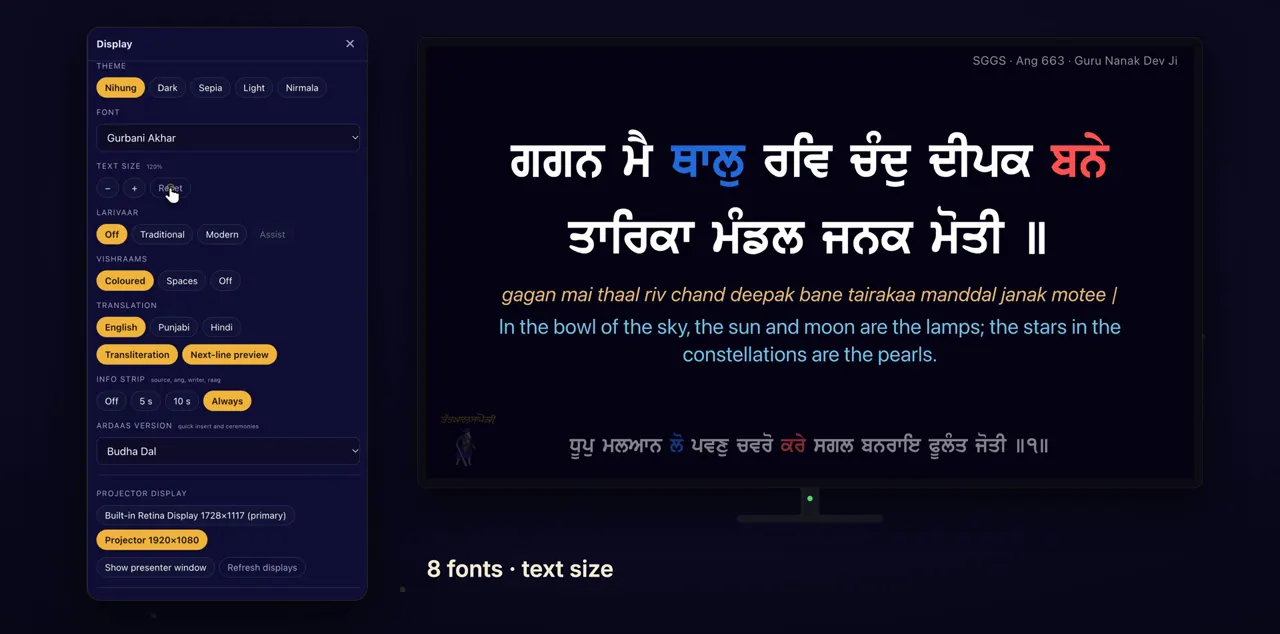
Pick one of eight Gurbani fonts, and make the text bigger or smaller.
Font is a dropdown list: Gurbani Akhar, Anmol Lipi, Gurbani Hindi, Riyasti Naveen, Riyasti Hastlikhat, Puratan Hastlikhat, Hathlikhat Larivaar and Prabhki. Text size has − and + buttons and Reset; + and − on the keyboard also change the size.
Larivaar and vishraams
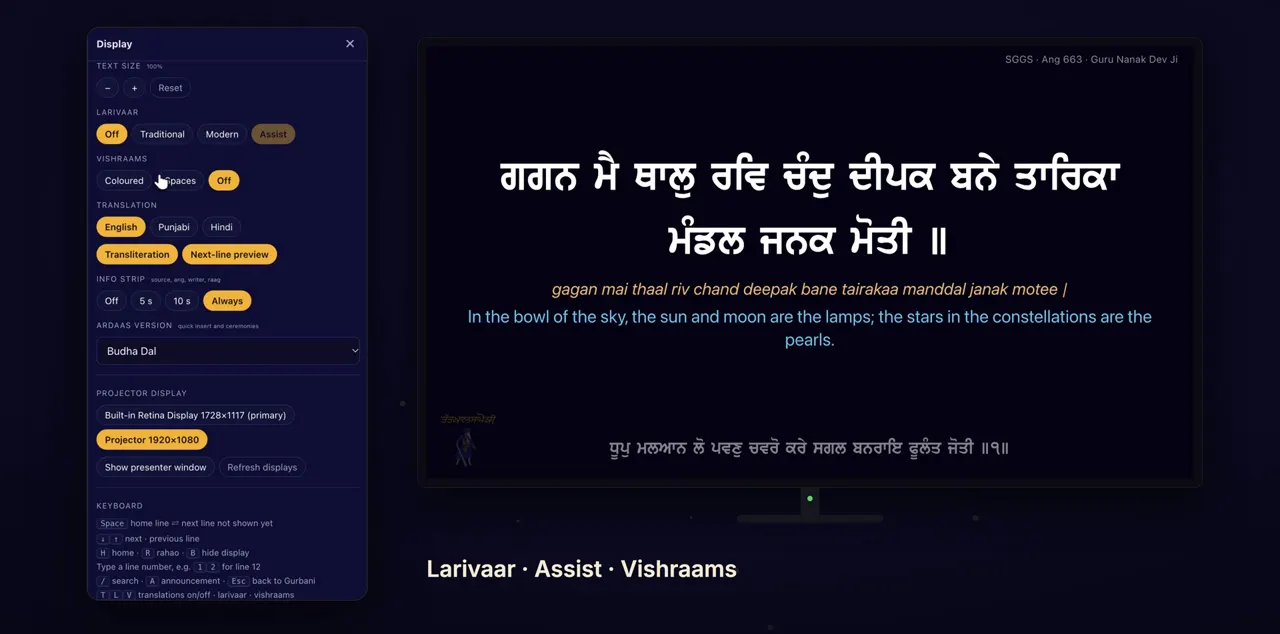
Larivaar joins the words, traditional or modern, with Assist to help the reader. Vishraams can be coloured, shown as spaces, or turned off.
For Larivaar, choose Off, Traditional or Modern; Assist can be turned on only while larivaar is on. For Vishraams, choose Coloured, Spaces or Off. L and V on the keyboard are shortcuts for larivaar and vishraam style.
Translations
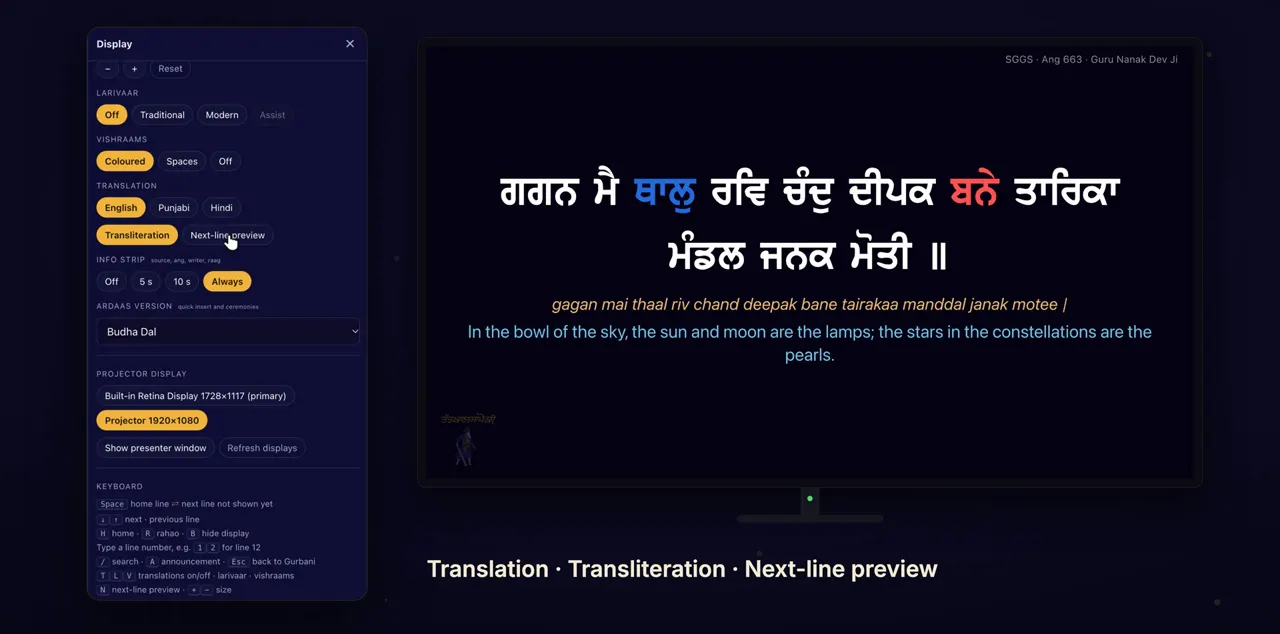
Add translations in English, Punjabi or Hindi, transliteration, and a preview of the next line.
Turn on English, Punjabi and Hindi in any combination. Transliteration is in English letters, and Next-line preview shows the next line faintly. T and N on the keyboard are shortcuts for translations and the next-line preview.
The info strip
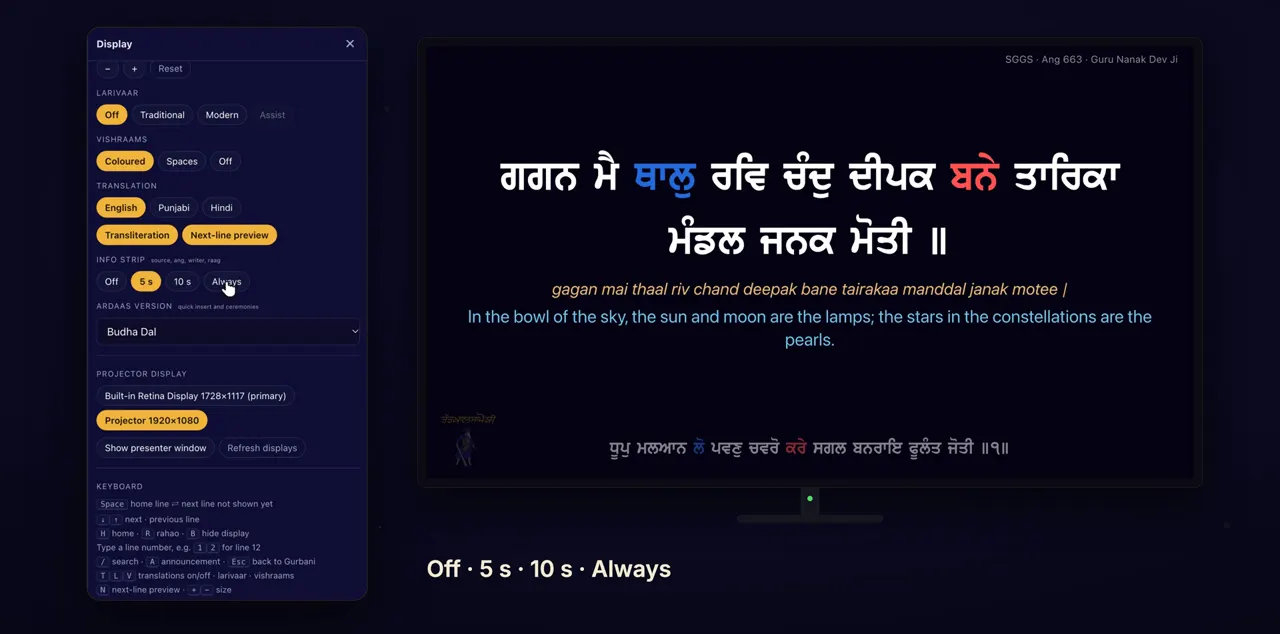
The info strip shows the source, ang, writer and raag: off, for a few seconds, or always.
Choose Off, 5 s, 10 s or Always. When nothing is on screen, the mangal and the Tat Khalsa Pothi logo show.
Tips
- Check the look from the back of the hall before the programme starts.
- During a programme, use T, L, V, N and + or − on the keyboard instead of opening Display.
Questions
Will changing the font move the lines around?
No. The fonts are sized to match each other, so switching fonts never changes the layout.
Can I show more than one translation?
Yes. English, Punjabi and Hindi can be on in any combination at once.
Do changes show on the projector right away?
Yes. Everything in Display changes the projector live.
What does the info strip show?
The source, ang, writer and raag. Set it to Off, 5 s, 10 s or Always.