
Mool Mantar, Anand Sahib, Ardaas and announcements are all one click away. Here's how.
Before you start
- Tat Khalsa Pothi Desktop installed, with a projector or TV connected.
- A shabad open on the screen, so you can see the inserts show over it and go back.
- Your Ardaas version chosen under Display.
- For an announcement, the wording ready in Gurmukhi, English or both.
Step by step
Mool Mantar and the cards
The quick insert row is at the bottom right. Mool Mantar and the two cards beside it show on the screen at once. Click again to go back to the shabad.
The row holds Anand Sahib, Mool Mantar, the two cards, Ardaas, Blank and Announce. Mool Mantar and the cards show over the shabad; pressing Esc also takes you back to it.
Anand Sahib and Ardaas
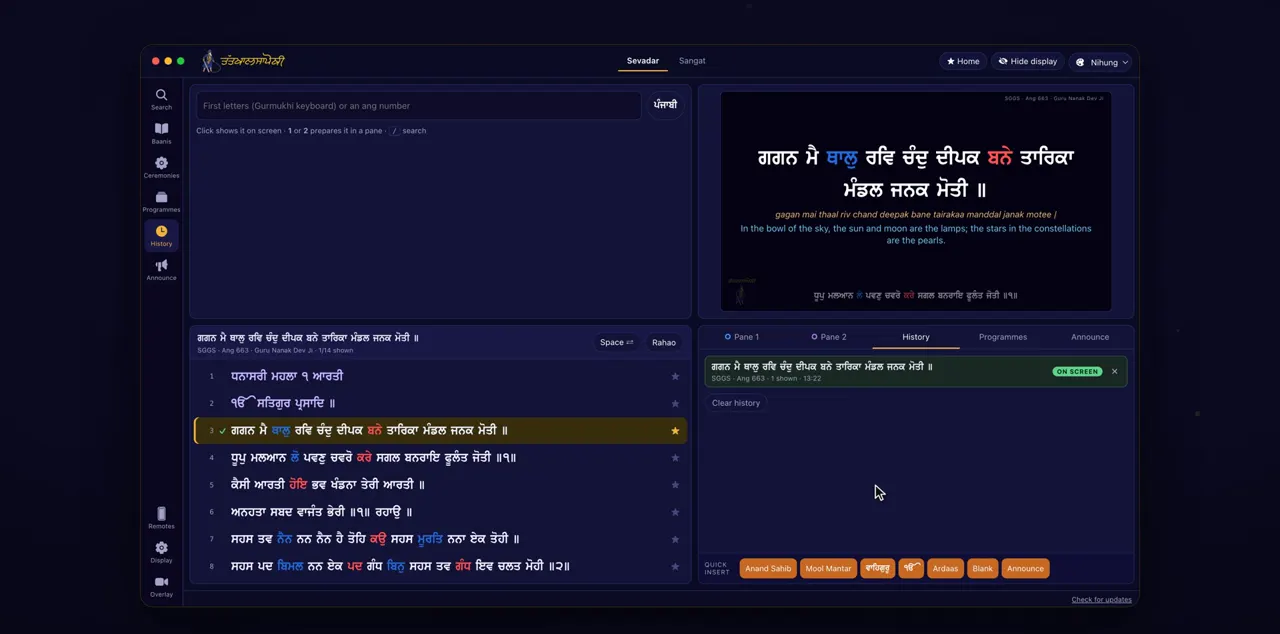
Anand Sahib opens its six pauris, and Ardaas opens the version chosen under Display.
Anand Sahib opens the six pauris (Ang 917 to 922) from the first line. If Ardaas opens the wrong version, change Ardaas version under Display.
Blank
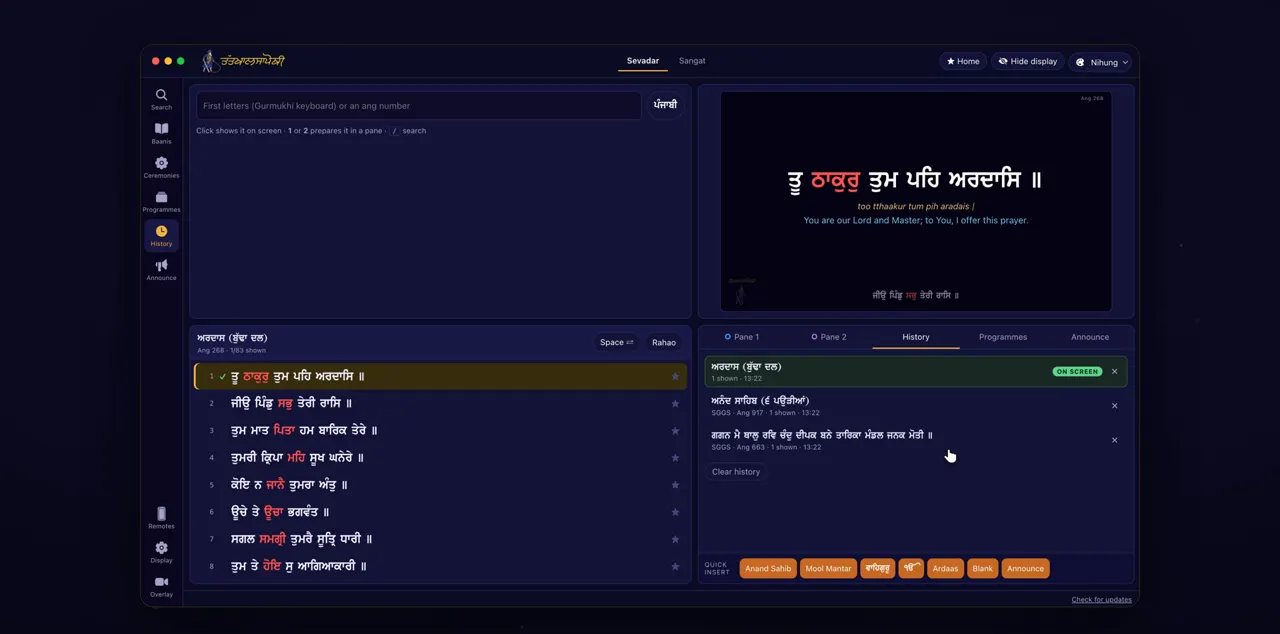
Blank hides the display. Click it again to bring it back. B on the keyboard does the same.
Blank is in the same quick insert row. When the display is blank, the background stays on the projector, so the room does not flash.
An announcement
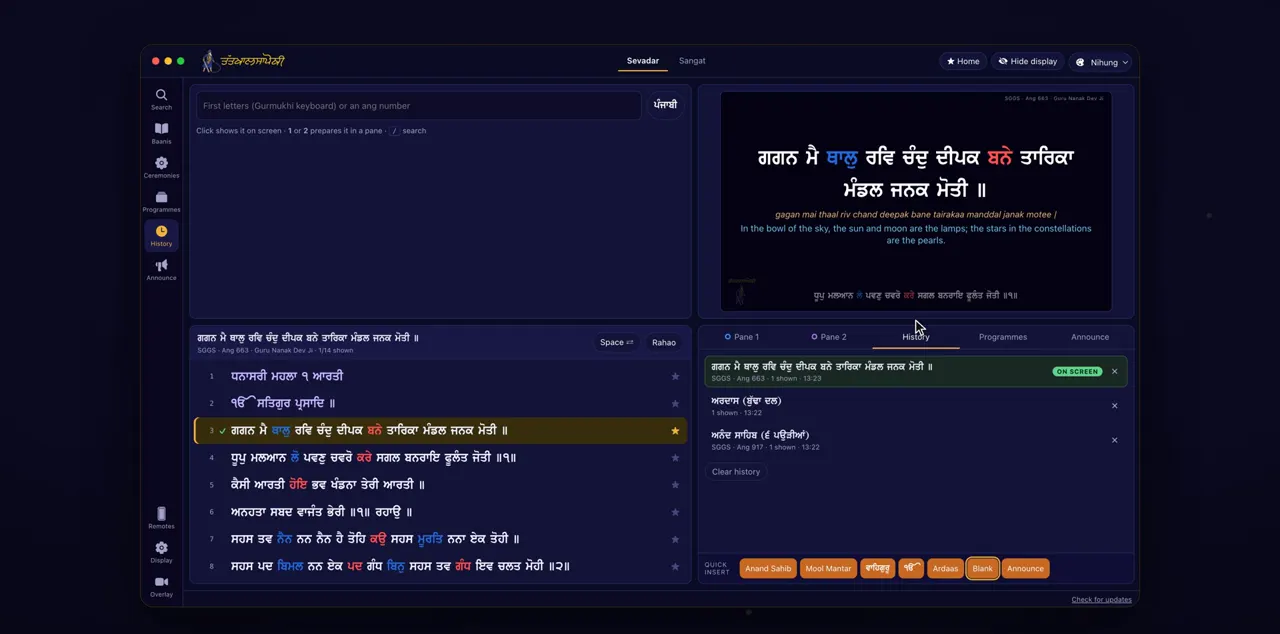
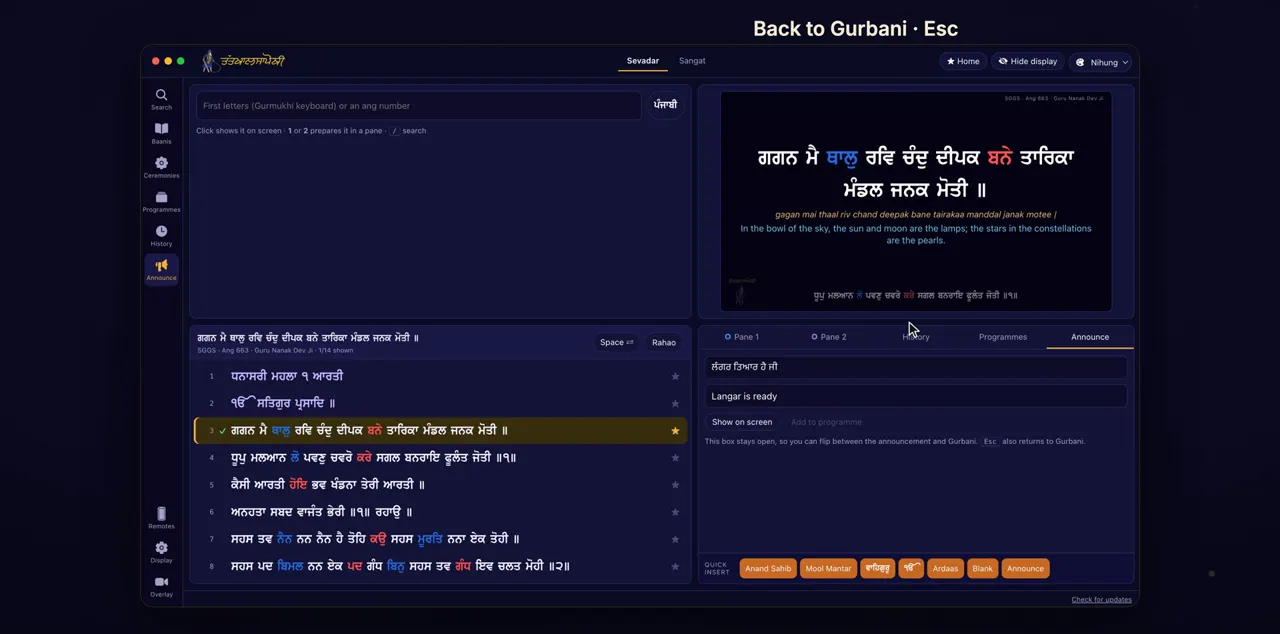
For an announcement, click Announce. Write it in Gurmukhi, English or both, and click Show on screen.
Announce is in the quick insert row; A on the keyboard is the shortcut for announcements. The announcement box has Gurmukhi and English, and you can fill either or both. The box stays open after Show on screen.
Back to Gurbani
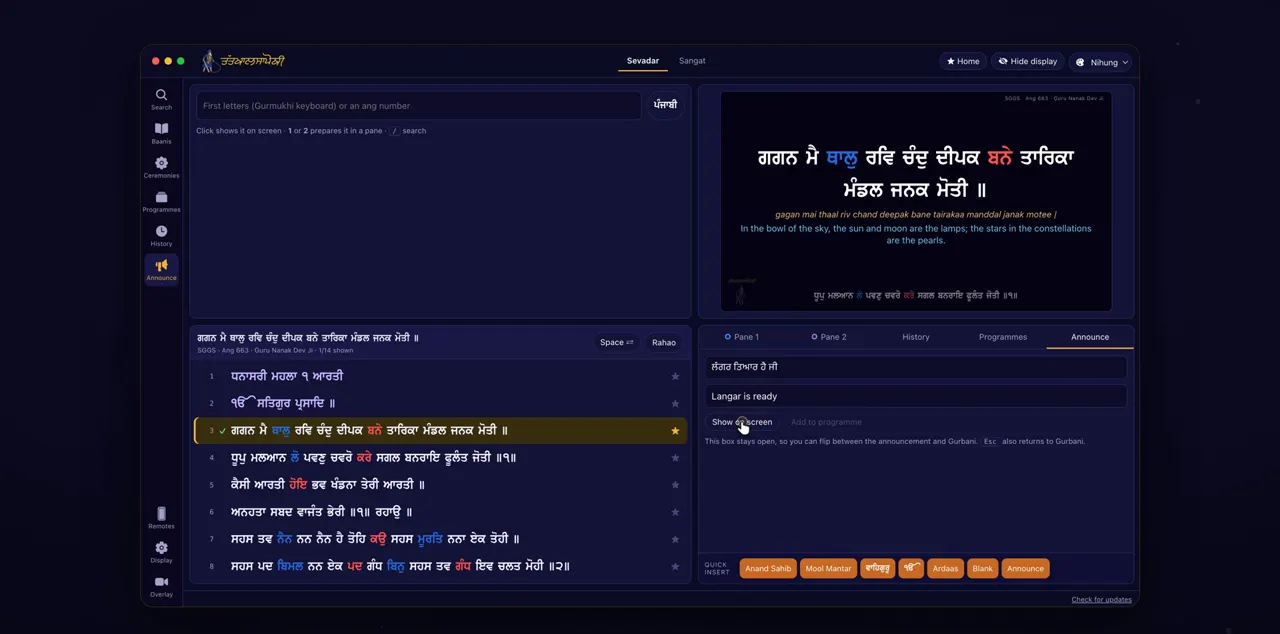
To go back to Gurbani, click Back to Gurbani, or press Escape.
The same box has Add to programme, which adds the announcement to the programme you are editing instead of showing it now.
Tips
- Esc goes back to the shabad from Mool Mantar, the cards and an announcement.
- B blanks the screen straight from the keyboard, without moving the mouse.
Questions
Does Blank turn the projector black?
It hides the Gurbani, but the background stays, so the room does not flash. Click Blank again, or press B, to bring it back.
Which Ardaas opens when I click Ardaas?
The version chosen under Display: Budha Dal, Shaheedi Baagh, Damdami Taksaal, Hazuri or Nanaksar. Ceremonies use the same setting.
Can I prepare an announcement for later?
Yes. Write it in the announcement box and click Add to programme. It goes into the programme you are editing and shows there as Slide.