
A programme is your running order of shabads, baanis and announcements, saved and ready. Here's how to plan one.
Before you start
- Tat Khalsa Pothi Desktop installed on your Mac or Windows computer.
- A projector or TV connected, so you can see each item go on screen.
- A list of the shabads and baanis you plan to use, and the wording of any announcements.
Step by step
Create a programme
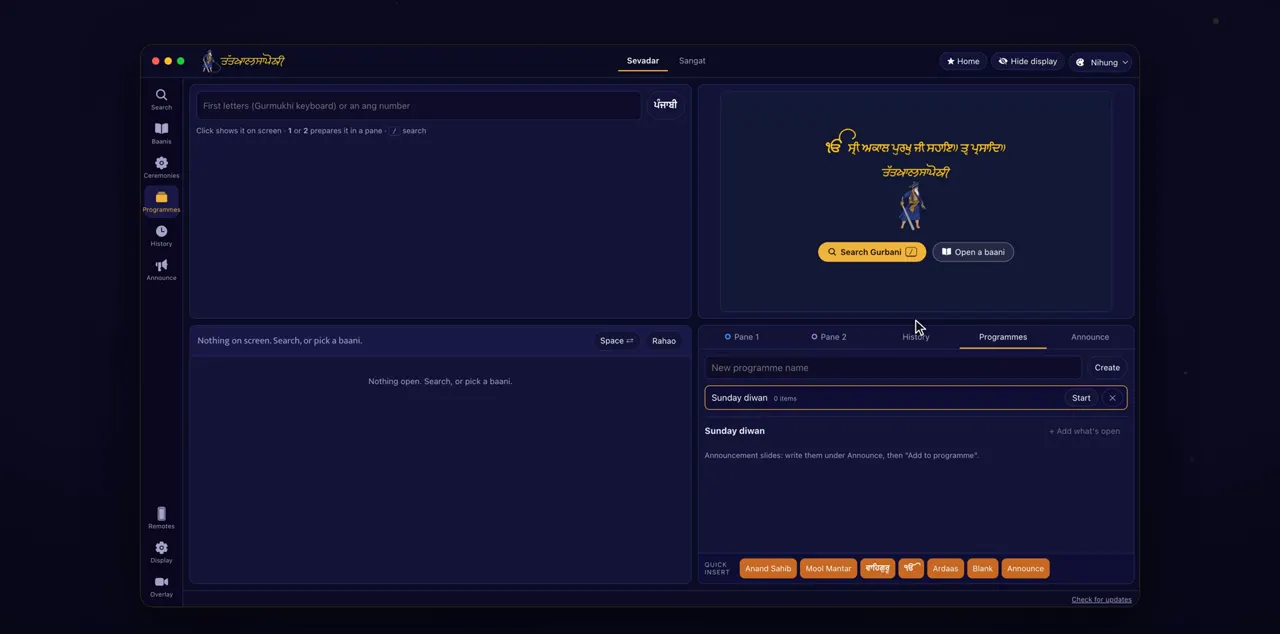
Open Programmes, type a name, and click Create.
Programmes is a tab on the right of the window, and it is also on the rail on the left. The new programme appears in the list with its number of items, a Start button and ✕ to delete it.
+ Add what's open
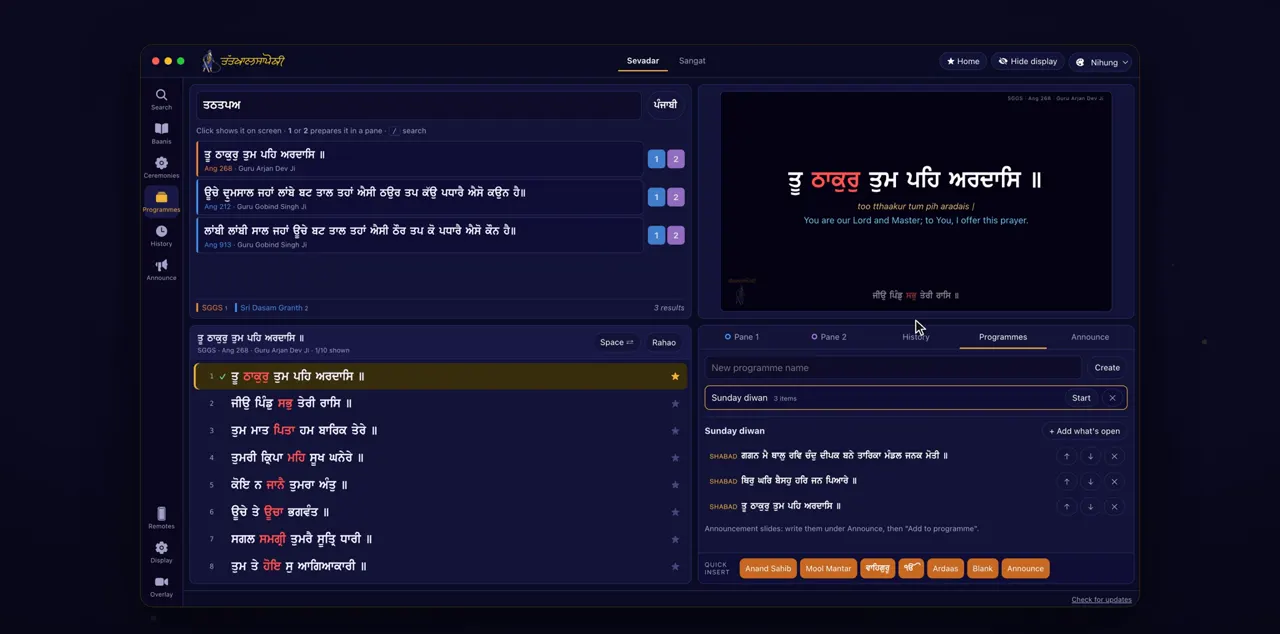
Open a shabad or a baani, and click Add what's open. Do the same for each item.
+ Add what's open adds the shabad or baani that is open now. A shabad keeps its home line, so when the programme reaches it, it opens on that line.
An announcement
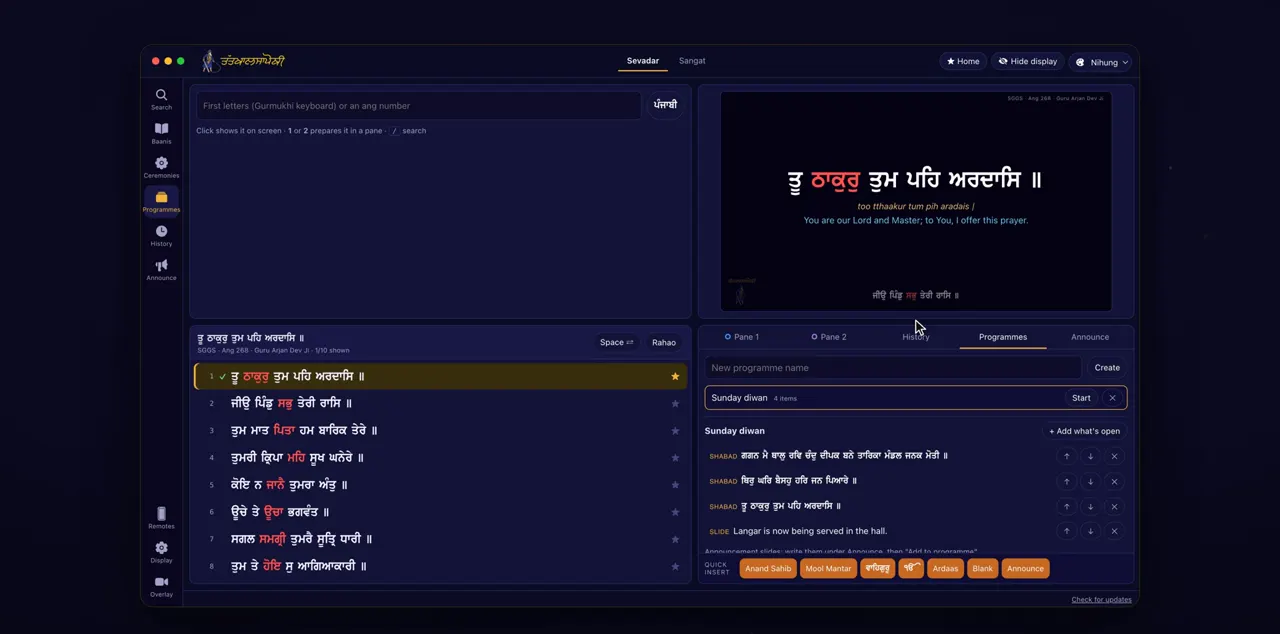
For an announcement, write it under Announce, and click Add to programme.
Announce is a tab of its own. Add to programme adds the announcement to the programme you are editing, and it shows in the list as Slide. Go back to Programmes to see it there.
The order
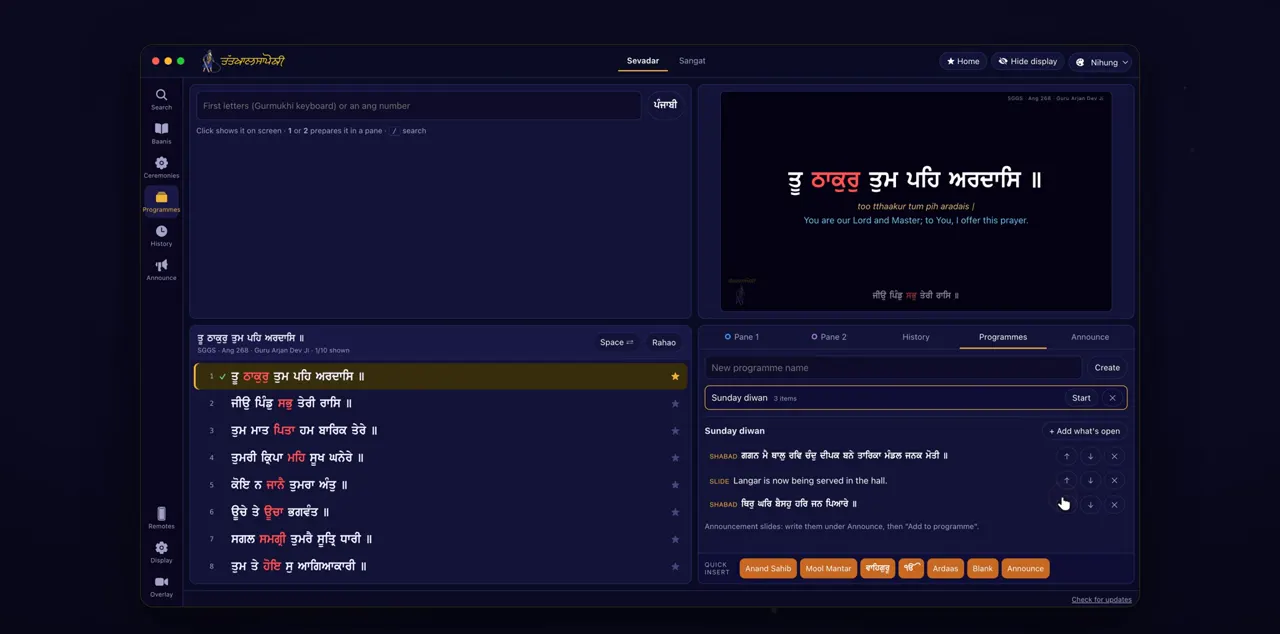
Put the items in order with the arrows, or remove one with the cross.
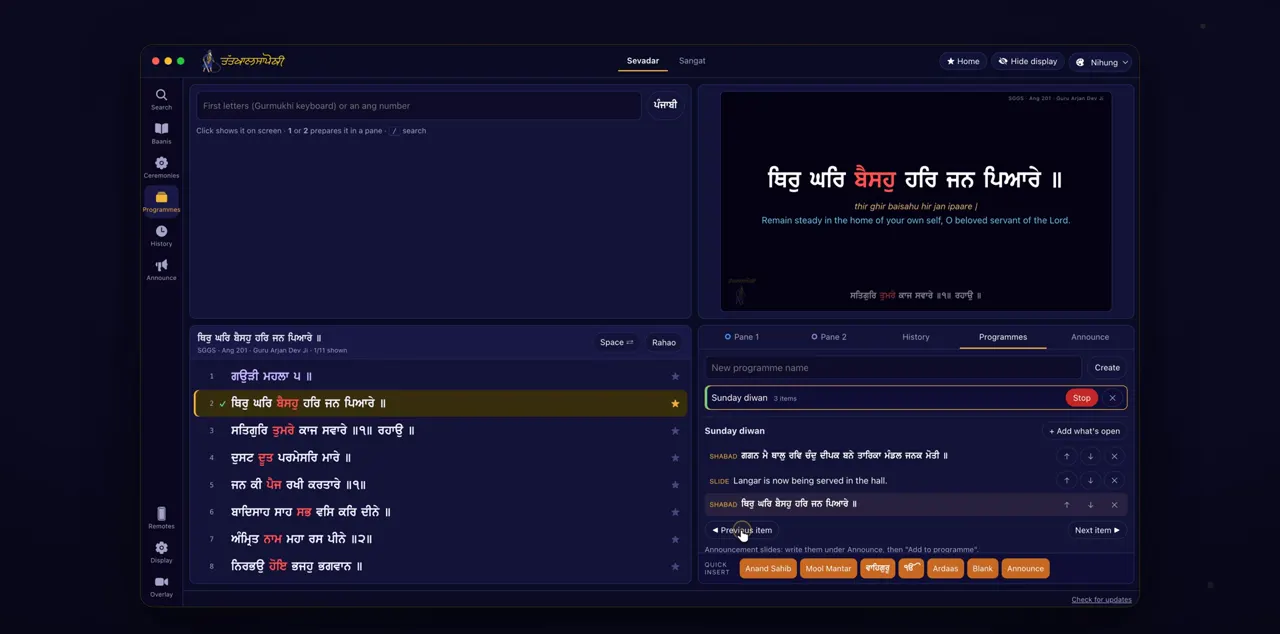
Each item has ↑ to move it up, ↓ to move it down and ✕ to remove it from the programme.
Run it
When the programme begins, click Start. Next item and Previous item move through it.
Start begins at the first item, and while the programme runs, Start changes to Stop. You can also click any item in the list to go straight to it.
Tips
- Give each programme a clear name, such as the day or the event, so you can find it quickly in the list.
- Add announcements such as langar to the programme ahead of time, so they come up in the right place.
Questions
Is the programme saved?
Yes. A programme stays in the Programmes list, ready to start when you need it.
How do I delete a whole programme?
Click ✕ on the programme in the Programmes list. To remove one item only, use ✕ on that item instead.
Can I jump to an item out of order?
Yes. While the programme runs, click any item in the list to go straight to it. Next item ▶ and ◀ Previous item carry on from there.
How do I stop a programme?
Click Stop. It shows in place of Start while the programme runs.