
This guide shows how to install Tat Khalsa Pothi on Windows. It's free, and it works on Windows 10 and 11.
Before you start
- A PC with Windows 10 or 11, 64-bit
- An internet connection for the download
- Choose one way to install: the Microsoft Store or the website, not both
Step by step
Get it from the Microsoft Store
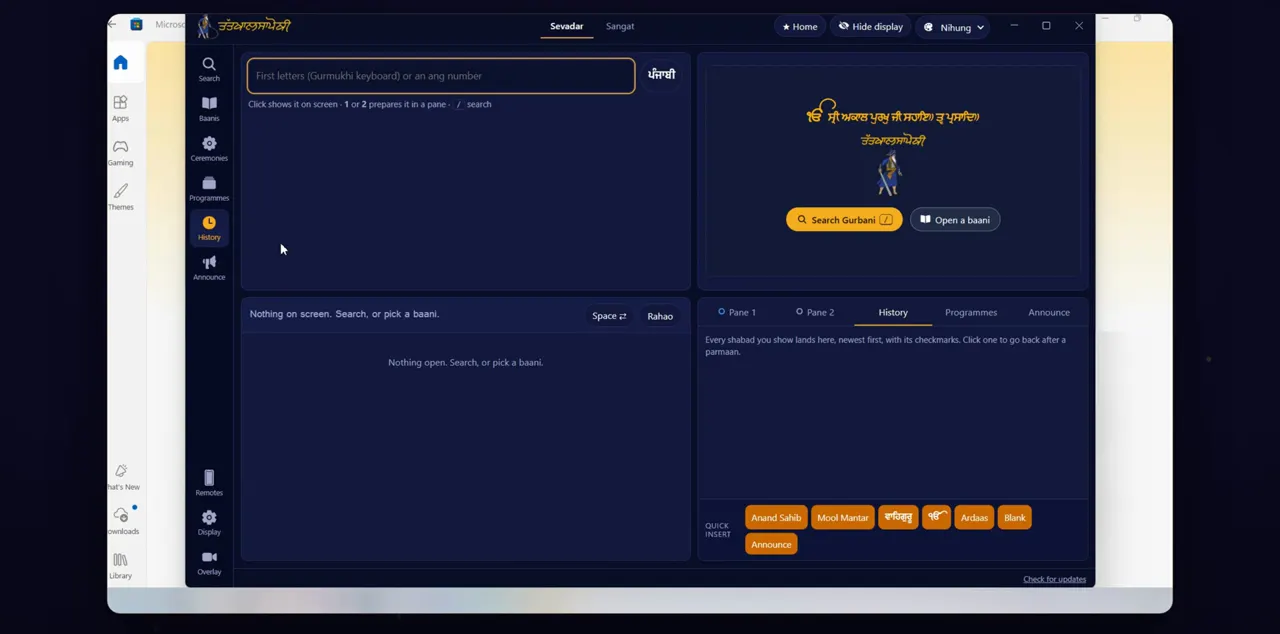
The easiest way is the Microsoft Store. Open the Store, search for Tat Khalsa Pothi, and click Get. When it's installed, click Open.
You can also open the listing straight from https://apps.microsoft.com/detail/9P1DC6GKNM4Z. If you install from the Store, Windows shows no warning, and you can go straight to the step on pinning it to the taskbar.
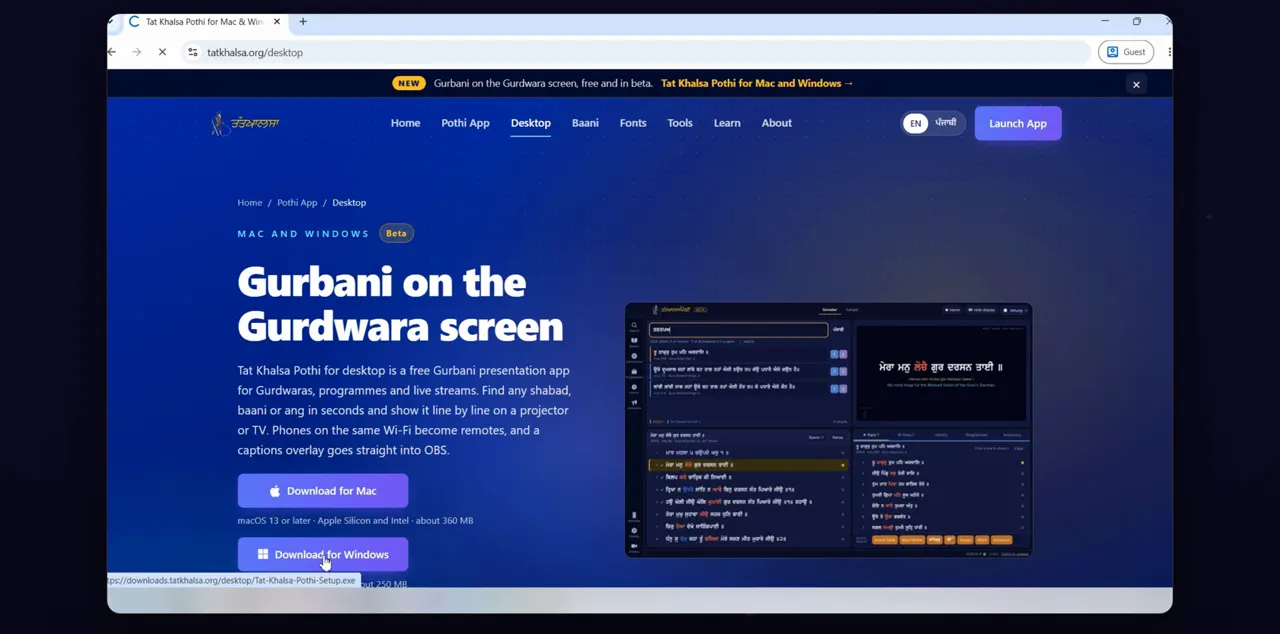
Or download from tatkhalsa.org/desktop
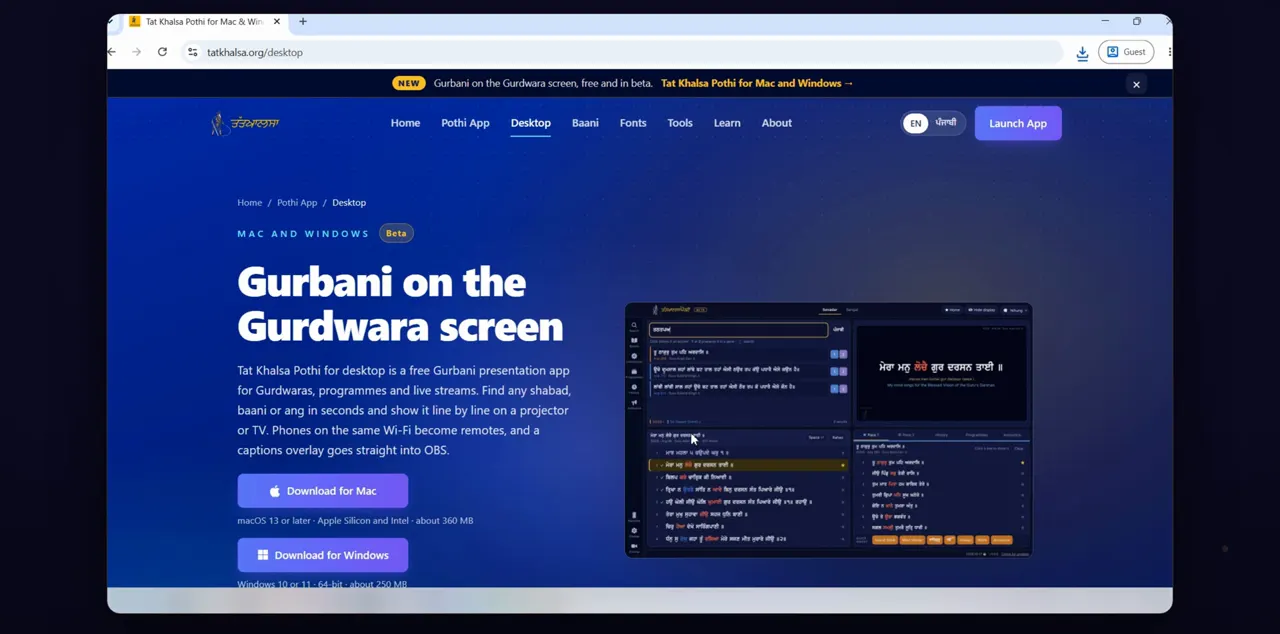
Or download it from the website. In your browser, go to tatkhalsa.org/desktop, and click Download for Windows.
Use this way if you can't use the Microsoft Store. On the page, the button has the line Windows 10 or 11 · 64-bit under it.
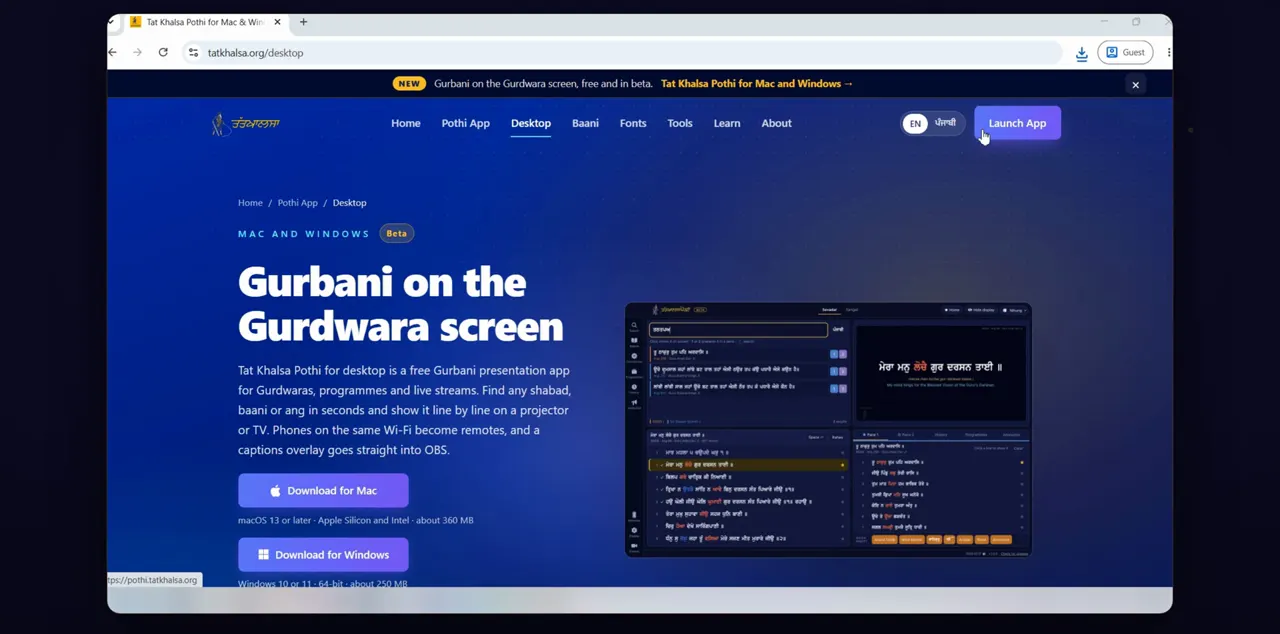
Open the download
When the download finishes, open it, from your browser or your Downloads folder.
If you can't see it in your browser, open File Explorer, go to Downloads, and double-click the installer.
If Windows warns you
Windows may warn that it protected your PC. That's expected, because the installer isn't code-signed yet. Click More info, then Run anyway. You only see this on the first install.
More info is a small link under the message. Run anyway only appears after you click it. Updates don't show this warning, and installs from the Microsoft Store never do.
Run the installer
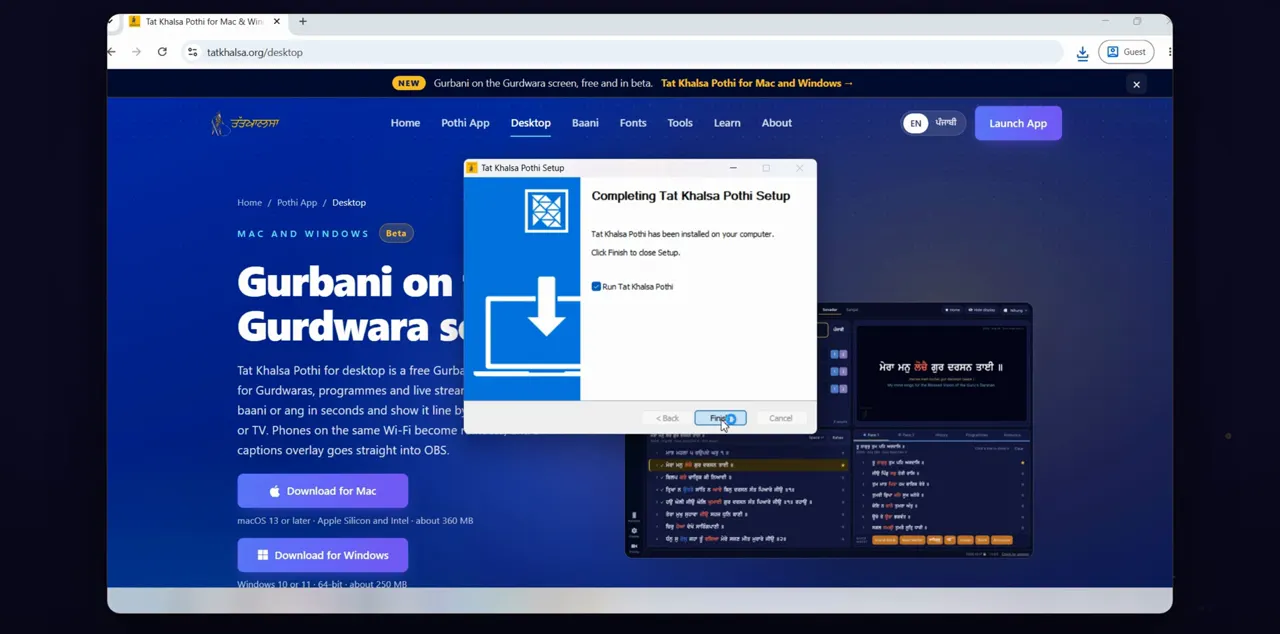
The installer asks who it's for, and where to put it. The choices it starts with are fine: click Next, then Install. When it's finished, leave Run Tat Khalsa Pothi ticked, and click Finish.
The first choice is Only for me, with your user name. Keep it: the app installs for your user only, so Windows doesn't ask for an administrator password.
Pin it to the taskbar
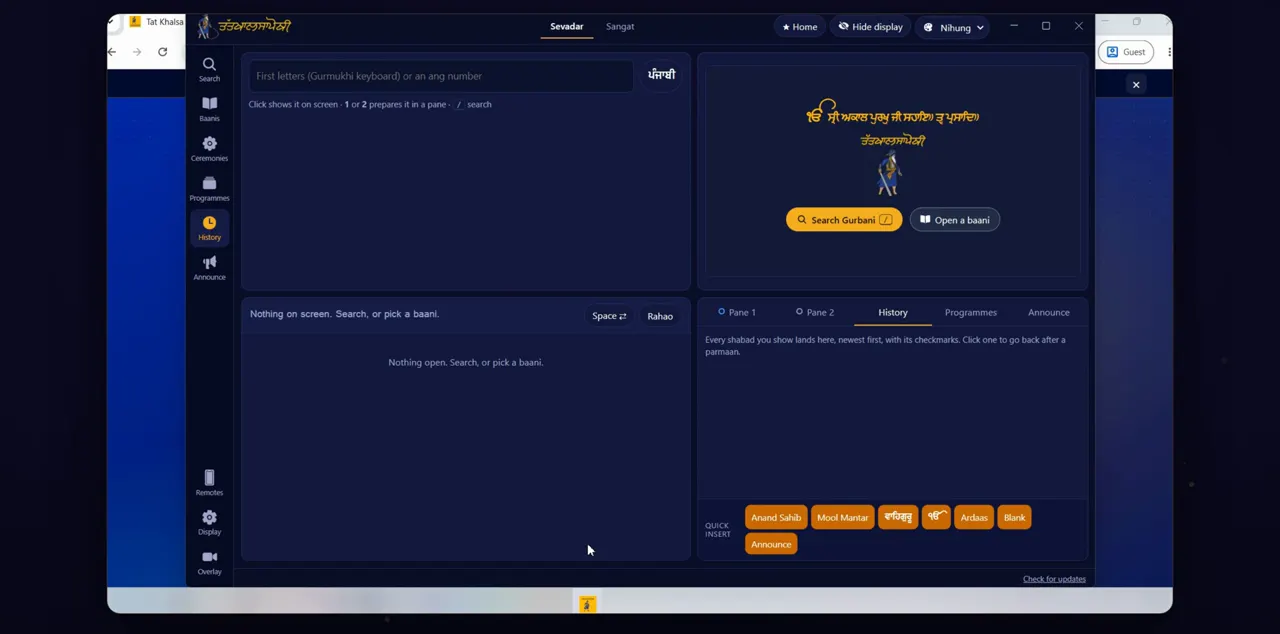
The app opens, ready to use. To keep it handy, right-click its icon in the taskbar, and choose Pin to taskbar.
A pinned icon stays in the taskbar after you quit, so one click opens the app next time.
Updates install when you quit
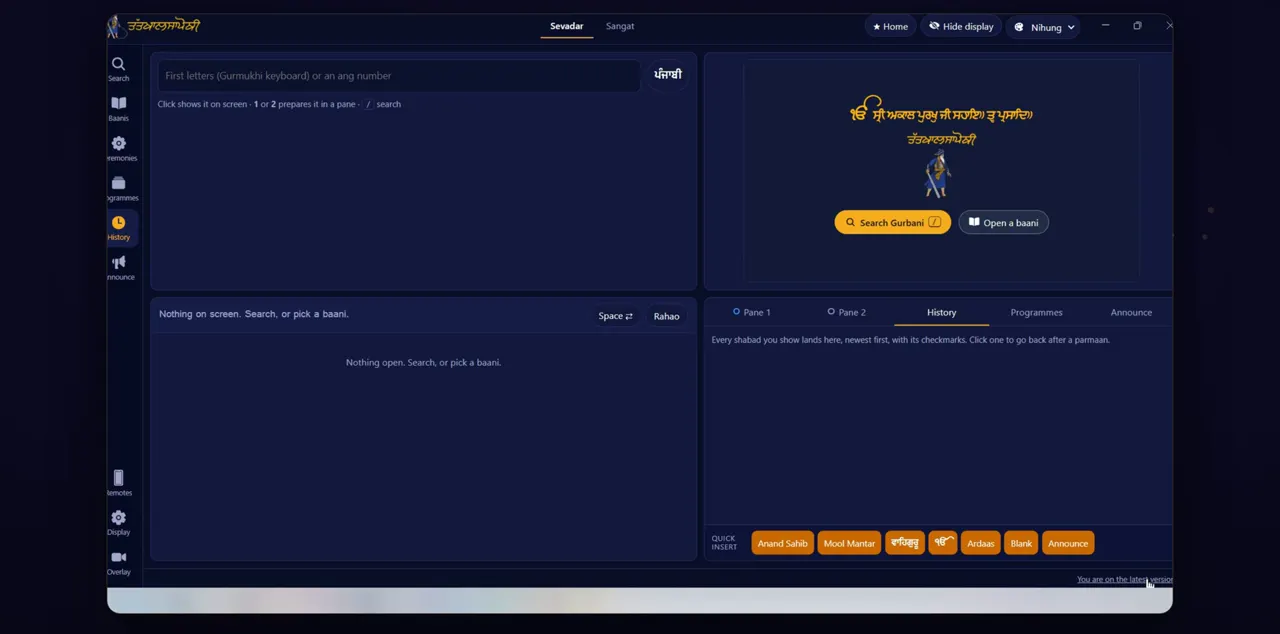
Updates take care of themselves. The app checks when it starts, downloads any update in the background, and installs it the next time you quit, never in the middle of a programme. To check yourself, click Check for updates, at the bottom right. If you installed from the Microsoft Store, updates come from the Store.
When an update has downloaded, the app shows an Update ready message: it installs the next time you quit, and nothing changes while a programme is running. The app never restarts by itself. In a Microsoft Store install, Check for updates tells you that updates come from the Microsoft Store.
Tips
- Quit the app after the programme, so a downloaded update can install before the next one.
- Internet is only needed to download the app and check for updates. Search and the projector work with no connection.
Questions
Why does Windows warn me when I install?
The installer from the website isn't code-signed yet, so SmartScreen may warn you the first time. Click More info, then Run anyway. Installing from the Microsoft Store avoids the warning.
Is the Microsoft Store version different from the website version?
No. Both have the same features. The only difference is where updates come from: the Store updates its own copy, and the website version updates itself when you quit.
Do I need an administrator account to install it?
No. The website installer puts the app in your own user account, so it doesn't ask for an administrator password.
Do I need internet at the Gurdwara?
No. The Gurbani database, fonts and translations are inside the app. Internet is only used to download the app, check for updates and send anonymous usage counts, such as which features are used.