
This guide shows how to install Tat Khalsa Pothi on a Mac. It's free, and it works on macOS 13 or later, on both Apple silicon and Intel Macs.
Before you start
- A Mac with macOS 13 or later, Apple silicon or Intel
- An internet connection for the download
Step by step
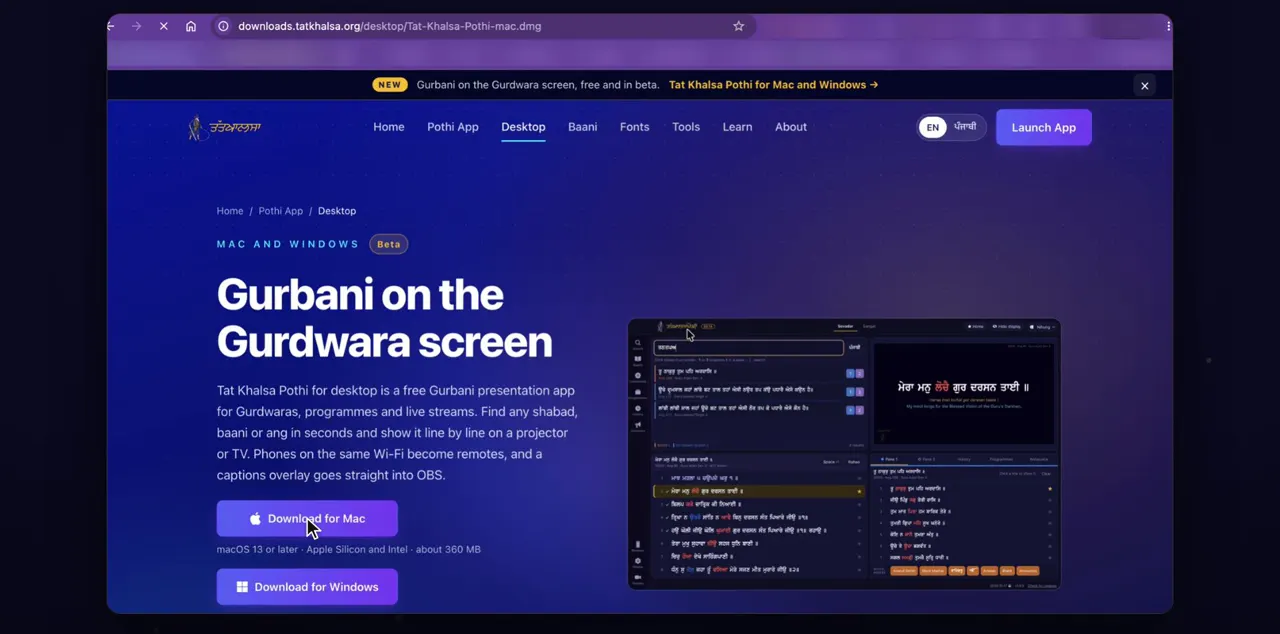
Download from tatkhalsa.org/desktop
Download it from the website. In your browser, go to tatkhalsa.org/desktop and click Download for Mac. It's one download for every Mac.
On the page, the button has the line macOS 13 or later · Apple Silicon and Intel under it. The file it saves is called Tat-Khalsa-Pothi-mac.dmg. There is no separate version to choose for Apple silicon or Intel.
Open the download
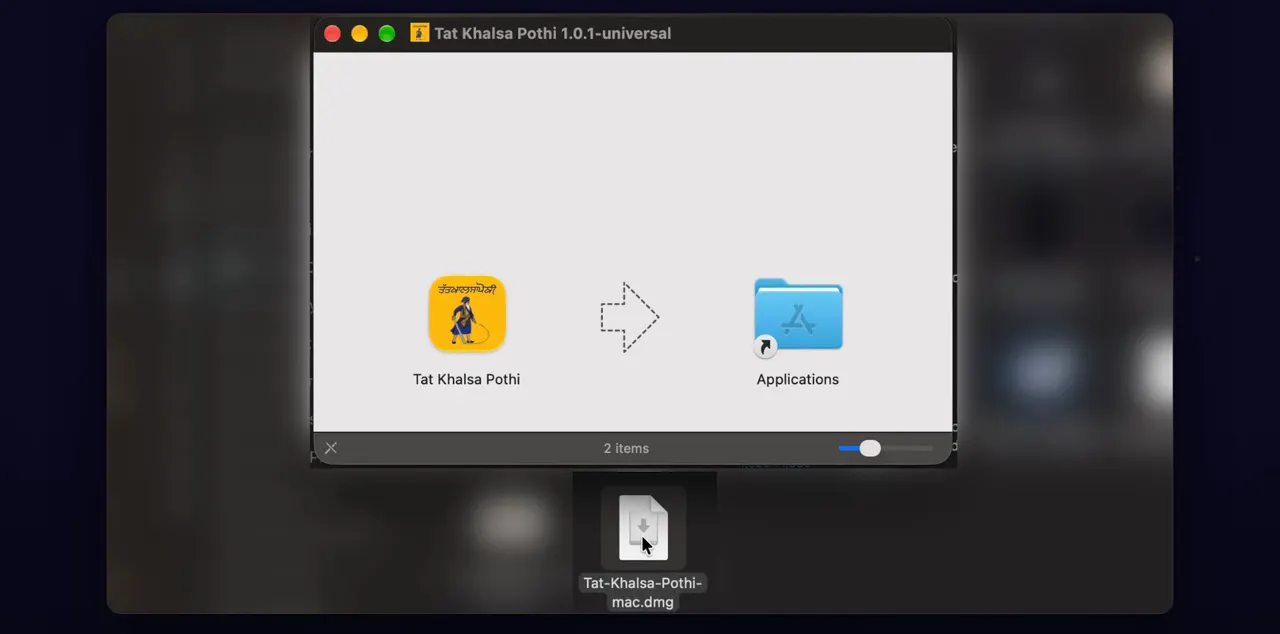
When the download finishes, open it from your Downloads folder. A window shows the app, and your Applications folder.
Double-click Tat-Khalsa-Pothi-mac.dmg. macOS checks the file first, so the window can take a few seconds to appear. It holds two icons: Tat Khalsa Pothi and an Applications shortcut.
Drag to Applications
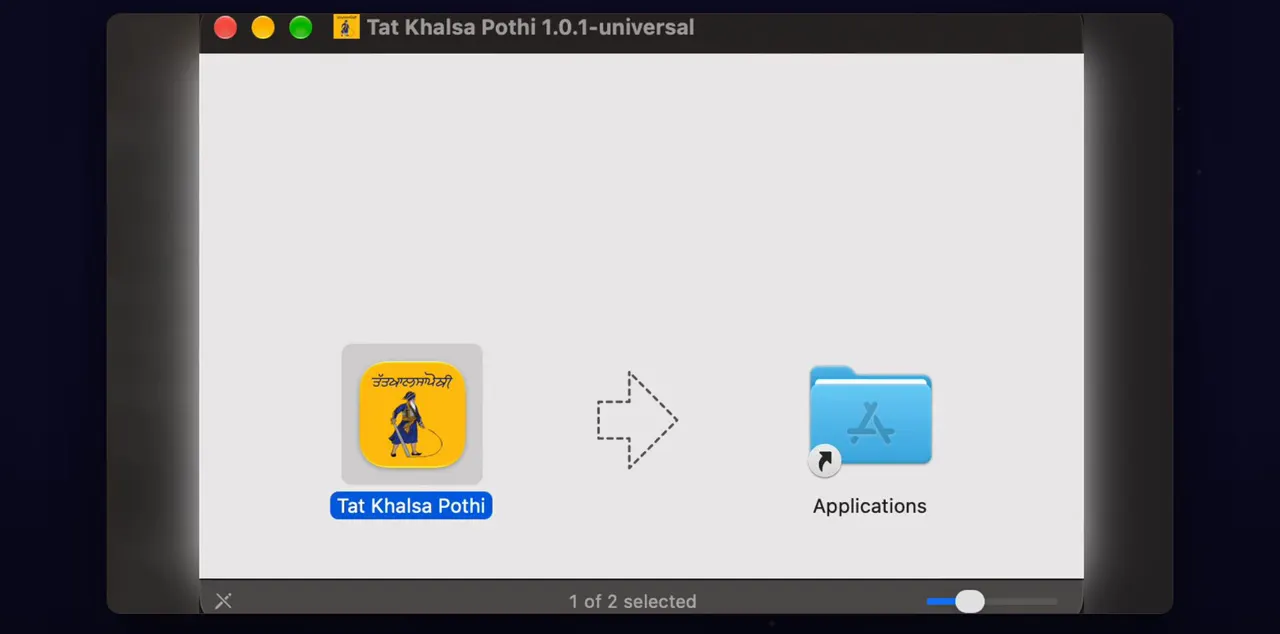
Drag Tat Khalsa Pothi onto the Applications folder, and wait for it to copy.
Drop the app on the Applications shortcut in that same window. When the copy finishes, the app is in your Applications folder and you can close the window.
Eject the installer
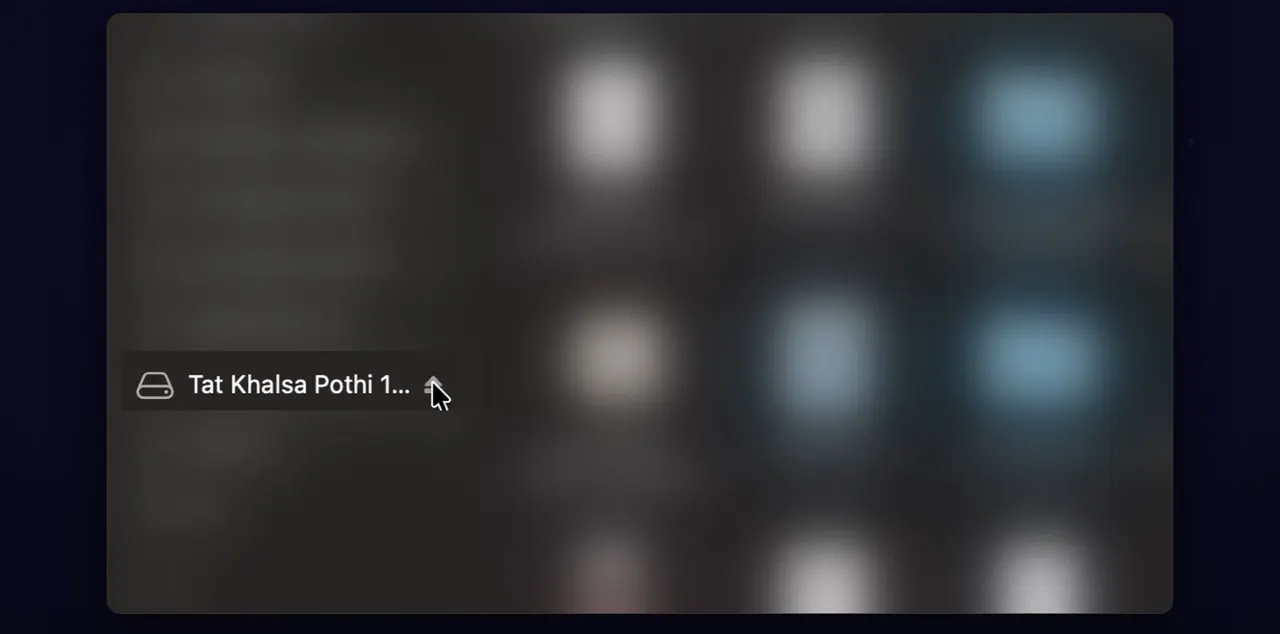
Then eject the installer, with the eject button next to it in Finder.
The installer is listed in the left-hand sidebar of any Finder window. Ejecting it does not remove the app, which is already in Applications.
Open it the first time
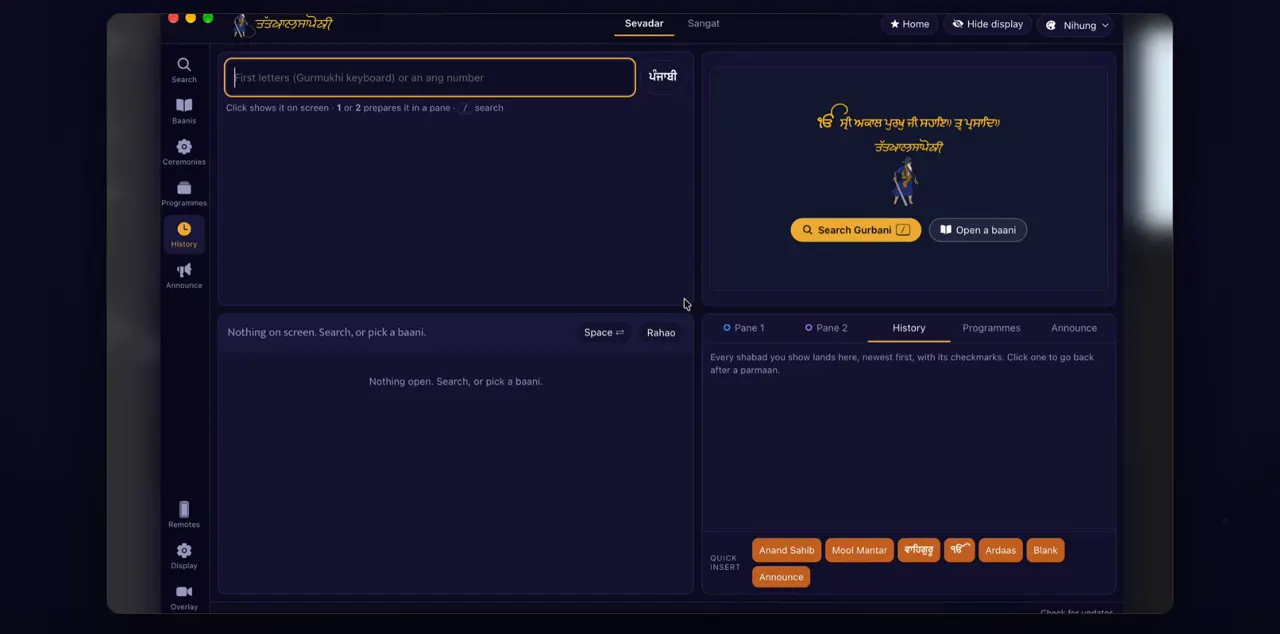
Open your Applications folder, and double-click Tat Khalsa Pothi. If your Mac asks whether you want to open an app downloaded from the internet, click Open. The app opens, ready to use.
The app is signed and notarized by Apple. The question about an app downloaded from the internet is macOS's own check, and it only comes the first time. The app opens on its start screen, with the mangal.
Keep it in the Dock
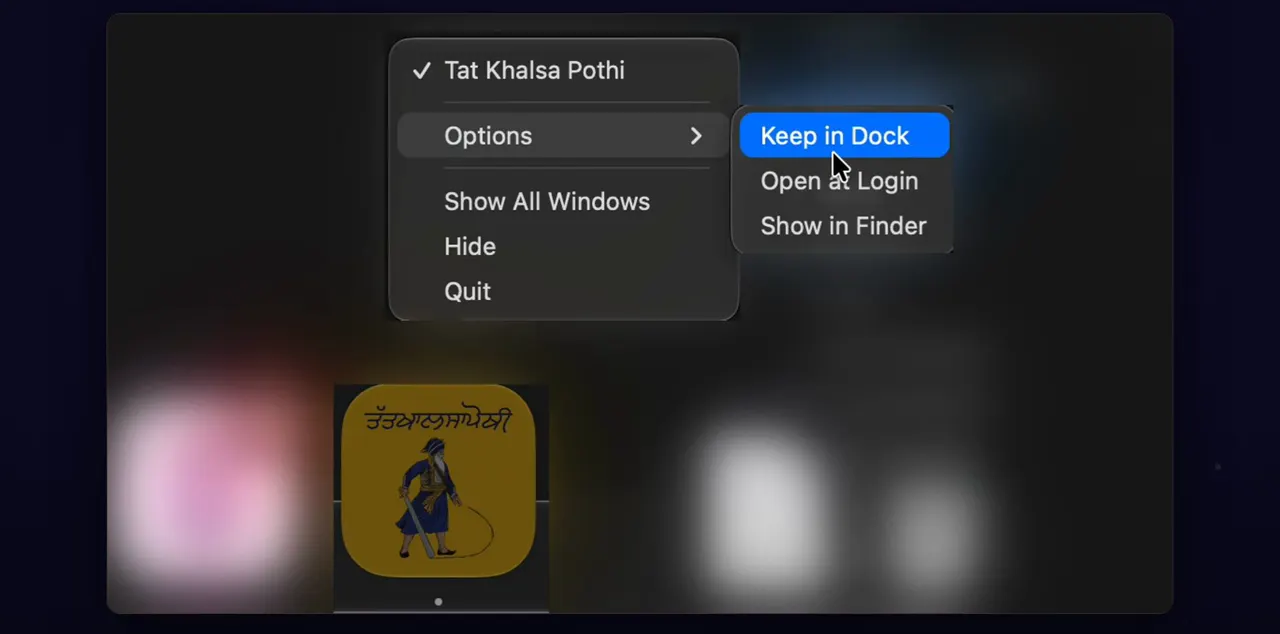
To keep it handy, right-click its icon in the Dock, choose Options, then Keep in Dock.
While the app is open, its icon is in the Dock. Keep in Dock leaves it there after you quit, so one click opens it next time.
Updates install when you quit
Updates take care of themselves. The app checks when it starts, downloads any update in the background, and installs it the next time you quit, never in the middle of a programme. To check yourself, click Check for updates, at the bottom right.
When an update has downloaded, the app shows an Update ready message: it installs the next time you quit, and nothing changes while a programme is running. The app never restarts by itself. Check for updates replaces itself with the answer, for example that you are on the latest version.

Tips
- Quit the app after the programme, so a downloaded update can install before the next one.
- Internet is only needed to download the app and check for updates. Search and the projector work with no connection.
Questions
Which download do I need for my Mac?
There is only one. Download for Mac works on every Mac with macOS 13 or later, Apple silicon or Intel.
Is it safe to click Open when my Mac asks about an app downloaded from the internet?
Yes. The app is signed and notarized by Apple. macOS asks this the first time you open any app downloaded from the internet.
Will an update interrupt a programme?
No. The app downloads updates in the background and installs them the next time you quit. It never restarts in the middle of a programme.
Do I need internet at the Gurdwara?
No. The Gurbani database, fonts and translations are inside the app. Internet is only used to download the app, check for updates and send anonymous usage counts, such as which features are used.