
Tat Khalsa Pothi can run on two screens: your laptop for the controls, and a projector or TV for the sangat. It also works with just one screen. Here's how to set it up.
Before you start
- Tat Khalsa Pothi installed on your laptop
- A projector or TV, if you are using two screens
- An HDMI or USB-C cable that fits both your laptop and the projector or TV
Step by step
Connect the cable
Connect the projector or TV to your laptop, with an HDMI or USB-C cable.
You can connect it before or after opening the app. If the app is already open, the projector window appears as soon as the screen is connected.
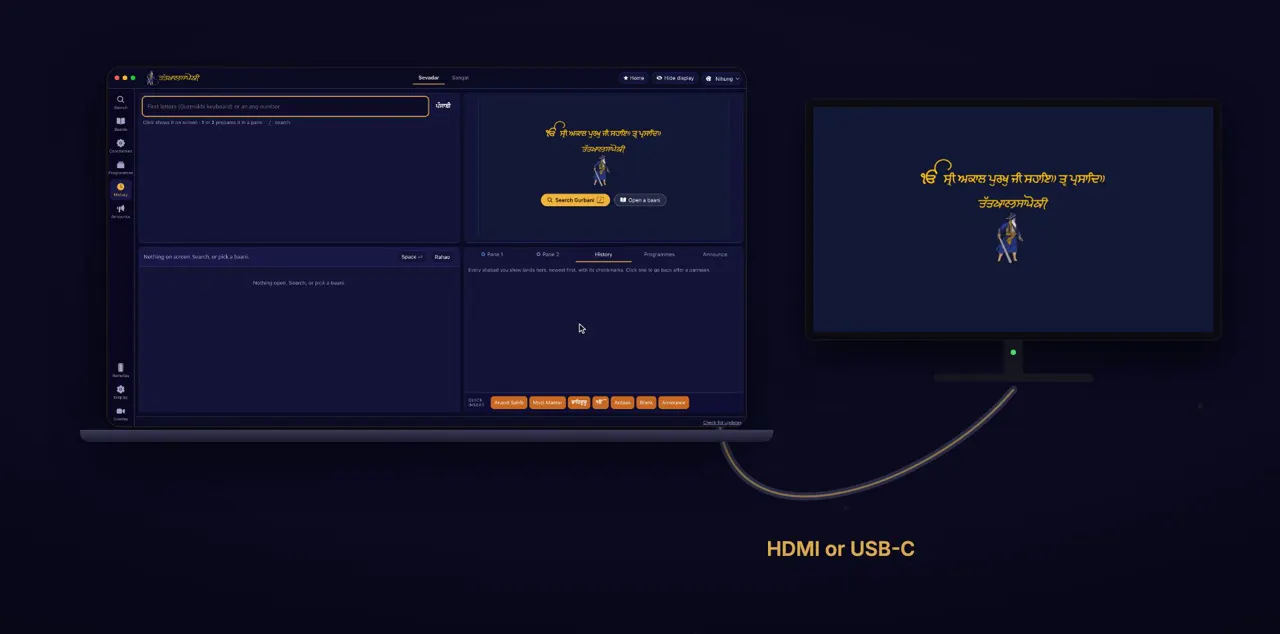
The projector window opens by itself
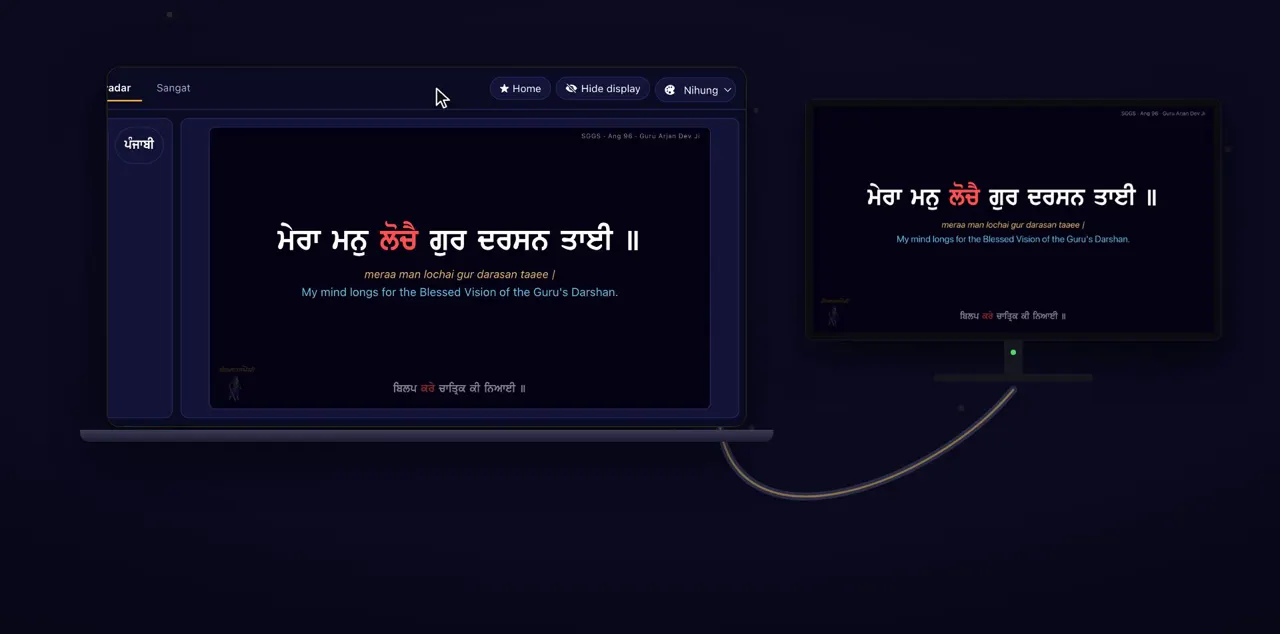
The projector window opens on it by itself, full screen. Until you show something, it shows the mangal and the logo. Pull the cable out, and it closes.
It opens on the screen that isn't your laptop's main one, with no window frame. With only one screen, no projector window opens: the app window itself is what the sangat sees.
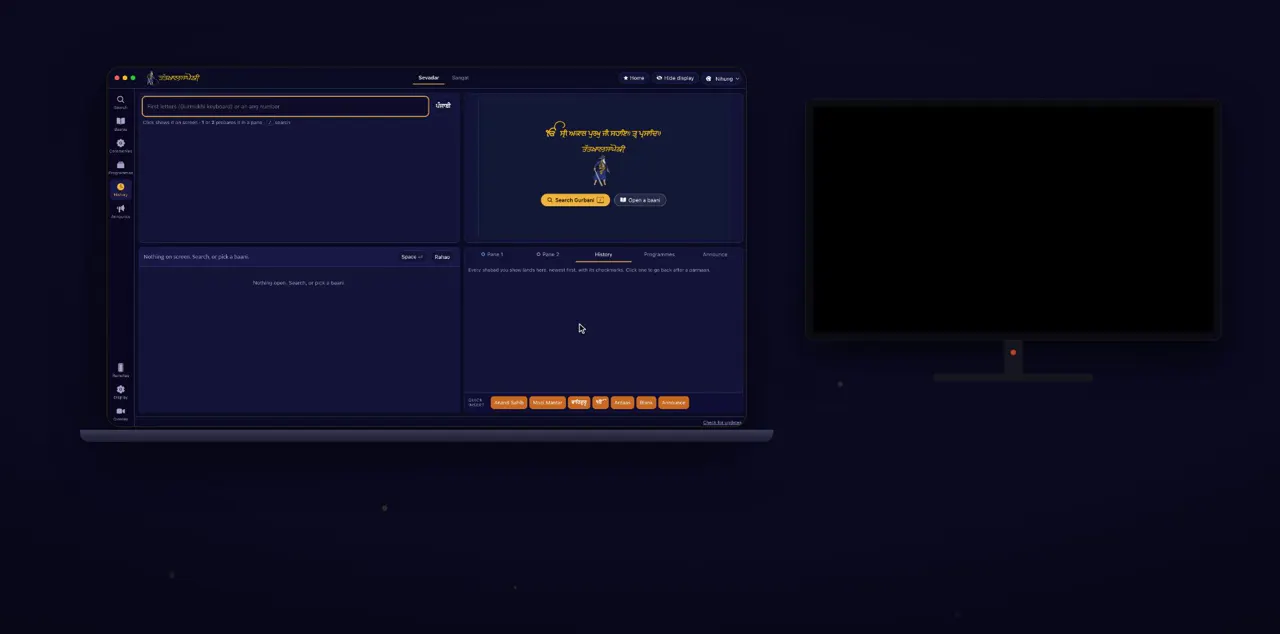
Same picture on both screens?
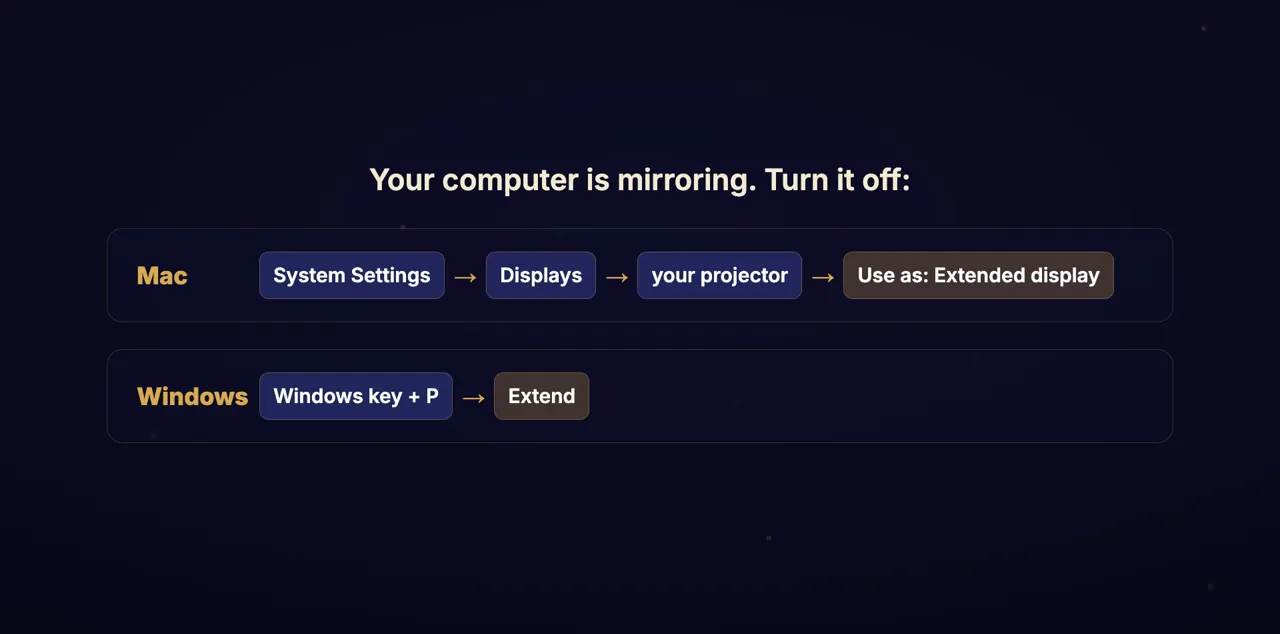
If both screens show the same picture, your computer is mirroring. On a Mac, open System Settings, then Displays, choose the projector, and set Use as to Extended display. On Windows, press the Windows key and P, and choose Extend.
Mirroring is a setting of your computer, not of Tat Khalsa Pothi.
Choose which screen
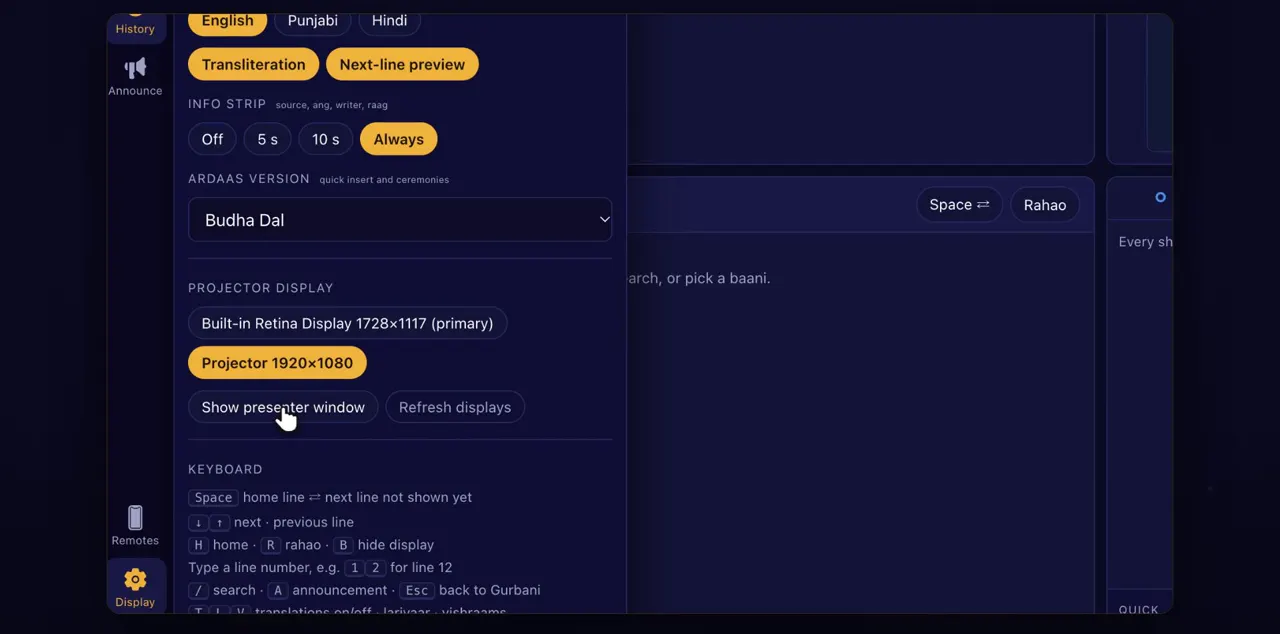
If it opens on the wrong screen, open Display, and under Projector display, pick the right one. If you closed the projector window, Show presenter window brings it back.
Under Projector display, each screen has its own button with its name and size, and your laptop's own screen is marked primary. The app remembers the screen you pick. If a screen is missing from the list, click Refresh displays.
Sevadar or Sangat
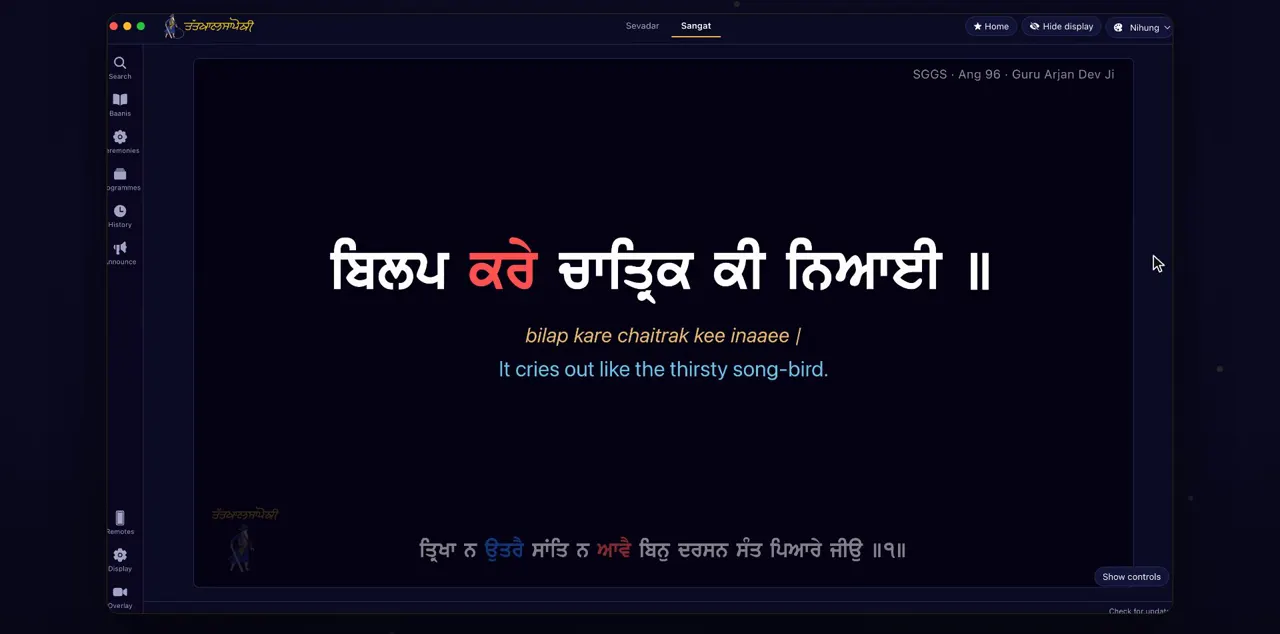
At the top, choose how you work. Sevadar is for two screens: the controls stay here, and only Gurbani goes to the projector. Sangat is for one screen: this window becomes what the sangat sees, with small controls on top.
Sevadar and Sangat are tabs at the top of the window. The app always opens in Sevadar, with one screen or two.
Plugged in or out mid-programme
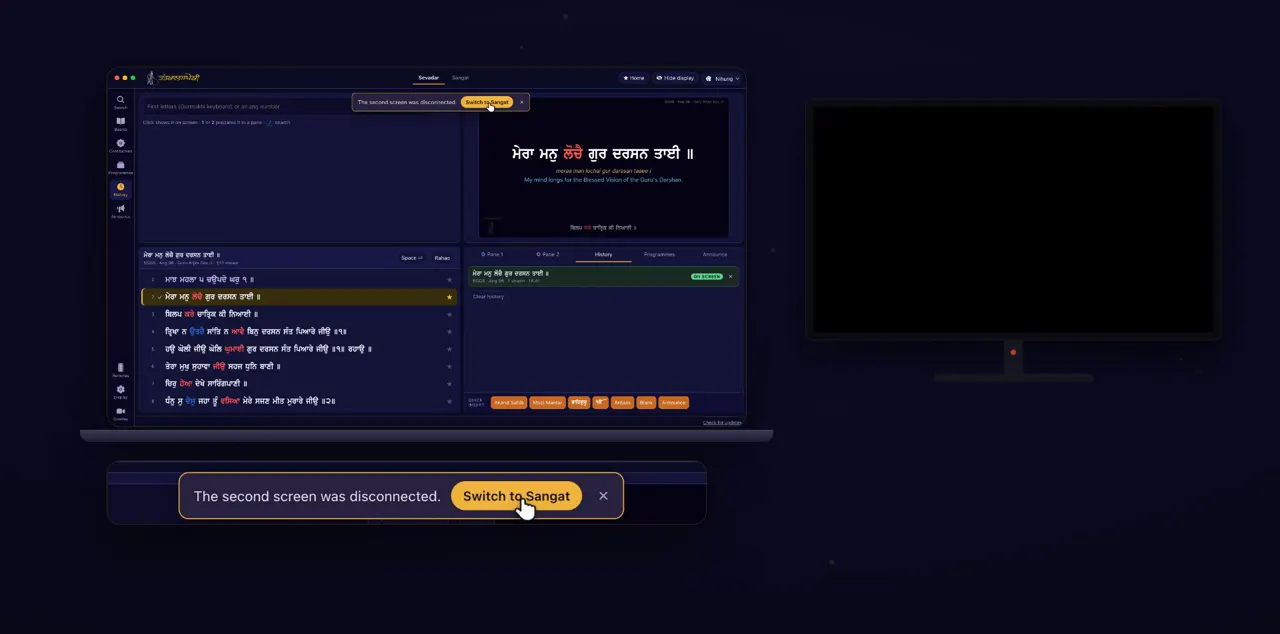
Plug a screen in or out mid-programme, and the app offers to switch for you.
A notice bar appears in the app window. Connect a screen while in Sangat, and it says the presenter is on the second screen, with a Switch to Sevadar button. Disconnect it while in Sevadar, and it offers Switch to Sangat.
Home, Hide display, Back to Gurbani
These buttons are always at hand. Home goes back to the home line, or press H. Hide display blanks the projector for a moment, or press B; click it again to show it. And after an announcement or a card, Back to Gurbani returns to the shabad, or press Escape.
The buttons are in the header, and Home is marked with a star. While the projector is hidden, Hide display reads Show display; the background stays, so the room doesn't flash. Back to Gurbani only appears when something other than Gurbani is on screen.
This window's theme
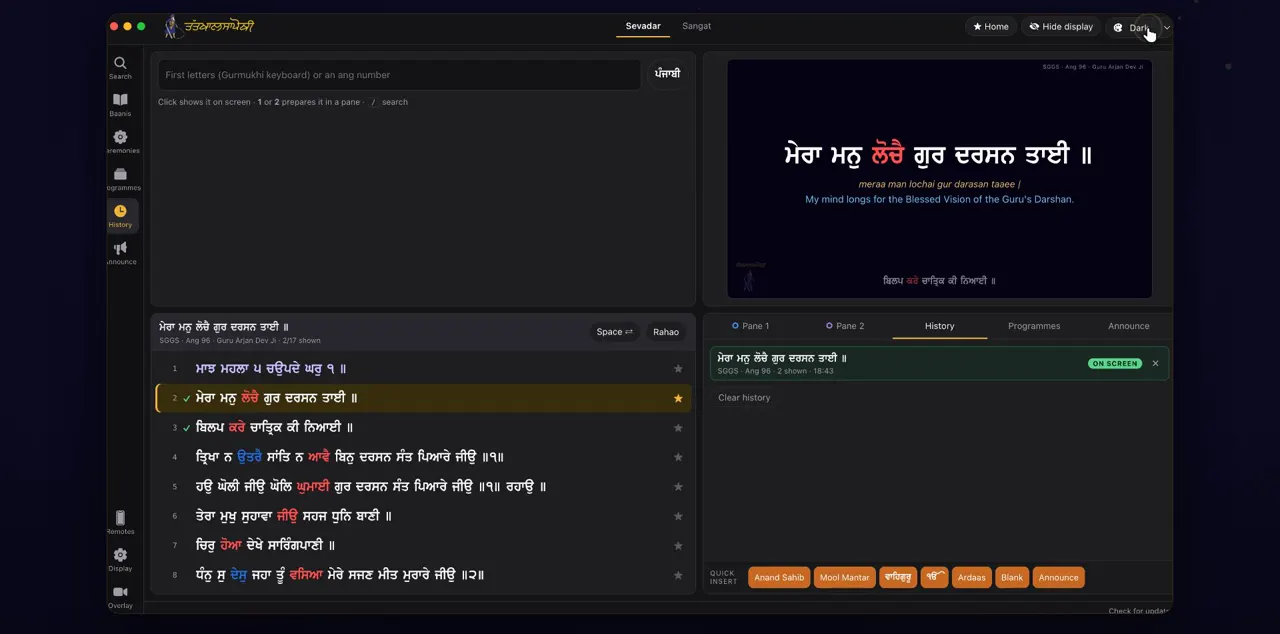
Working in a bright room, or a dark one? Change this window's theme here. The projector's own theme is under Display.
The theme picker is a list in the header with Nihung, Dark, Light, Sepia and Nirmala. Changing it leaves the projector as it is.
Tips
- Connect the projector before the programme starts. If it shows the mangal and the logo, it is connected and ready.
- Learn the three keys H, B and Escape. They work without looking for the buttons.
Questions
Can I use it with only one screen?
Yes. Choose Sangat: the app window becomes what the sangat sees, with small controls on top.
The projector shows my laptop's desktop, or the same picture as my laptop. What do I do?
Your computer is mirroring. On a Mac, open System Settings, then Displays, choose the projector and set Use as to Extended display. On Windows, press the Windows key and P, and choose Extend.
What happens if the cable comes out mid-programme?
The projector window closes. If you are in Sevadar, the app says the second screen was disconnected and offers Switch to Sangat. Plug the cable back in and the projector window opens again.
Does changing this window's theme change the projector?
No. The theme in the header is only for your window. The projector's own theme is under Display.