
Design how the Gurbani captions look in your live stream. Every change shows at once. Here's how.
Before you start
- Tat Khalsa Pothi Desktop open on your computer.
- A shabad on the screen, so the preview shows a real line while you design.
- The captions added to your streaming software, as in the guide Show Gurbani captions in OBS. You can also design first and add them later.
Step by step
Layouts
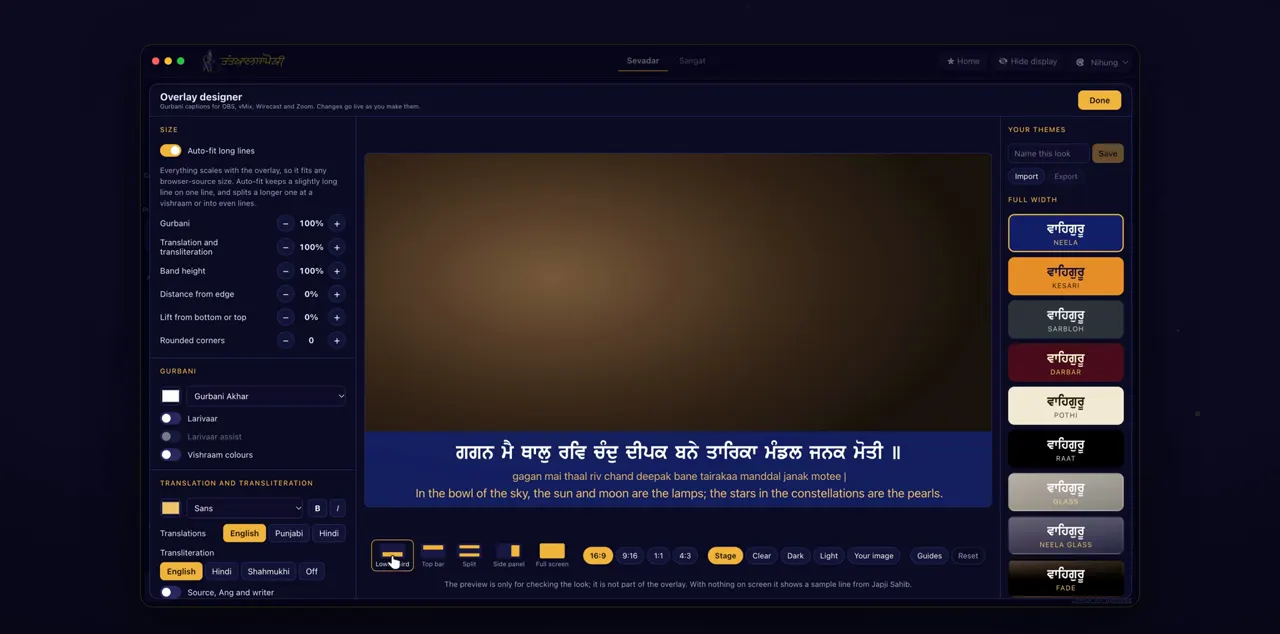
Click Overlay on the left to open the designer. Pick a layout: lower third, top bar, split, side panel or full screen.
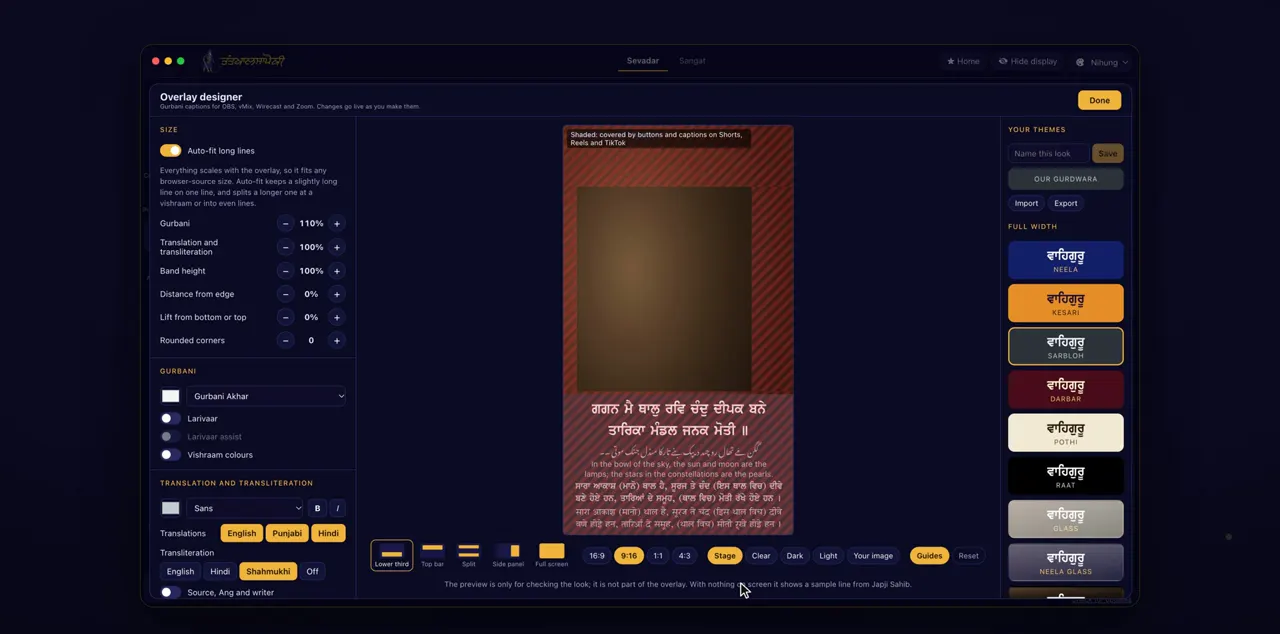
The designer has its controls on the left, a live preview in the middle and themes on the right. The layout buttons are under the preview. Changes go live as you make them, so anything already showing the captions changes too.
Themes
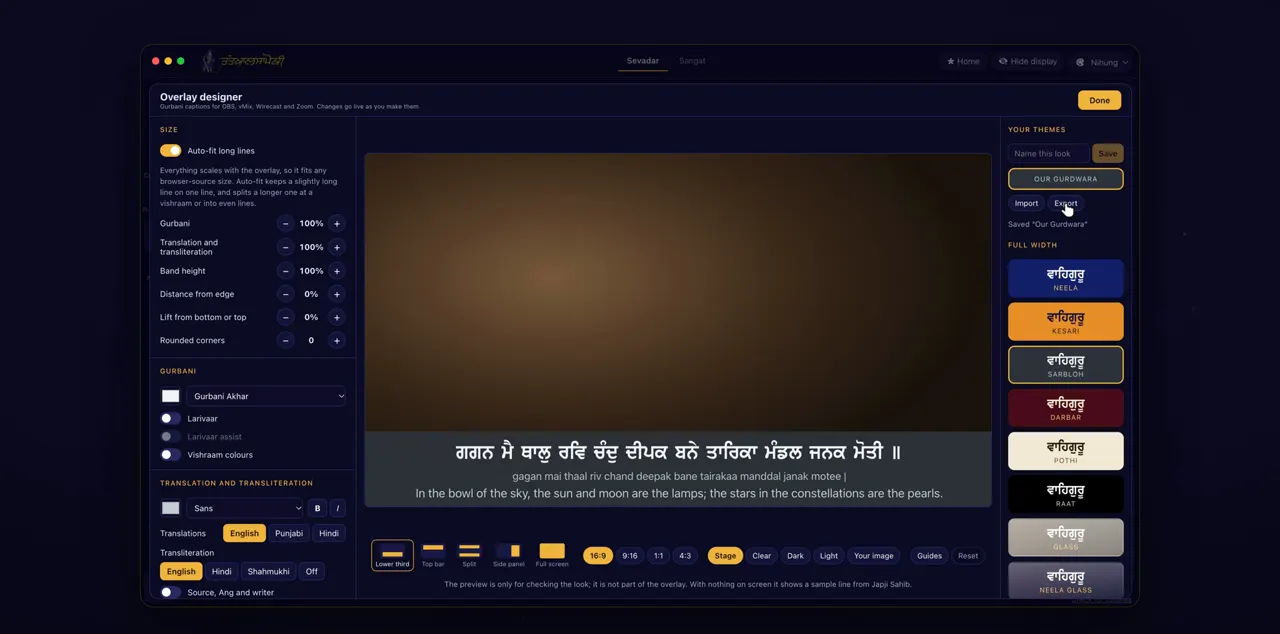
Pick a theme on the right, or save your own under Your themes. You can export themes to use on another computer.
To save your own, type a name under Your themes and click Save. Export saves your themes to a file; on the other computer, use Import to bring them in.
Size, font and translations
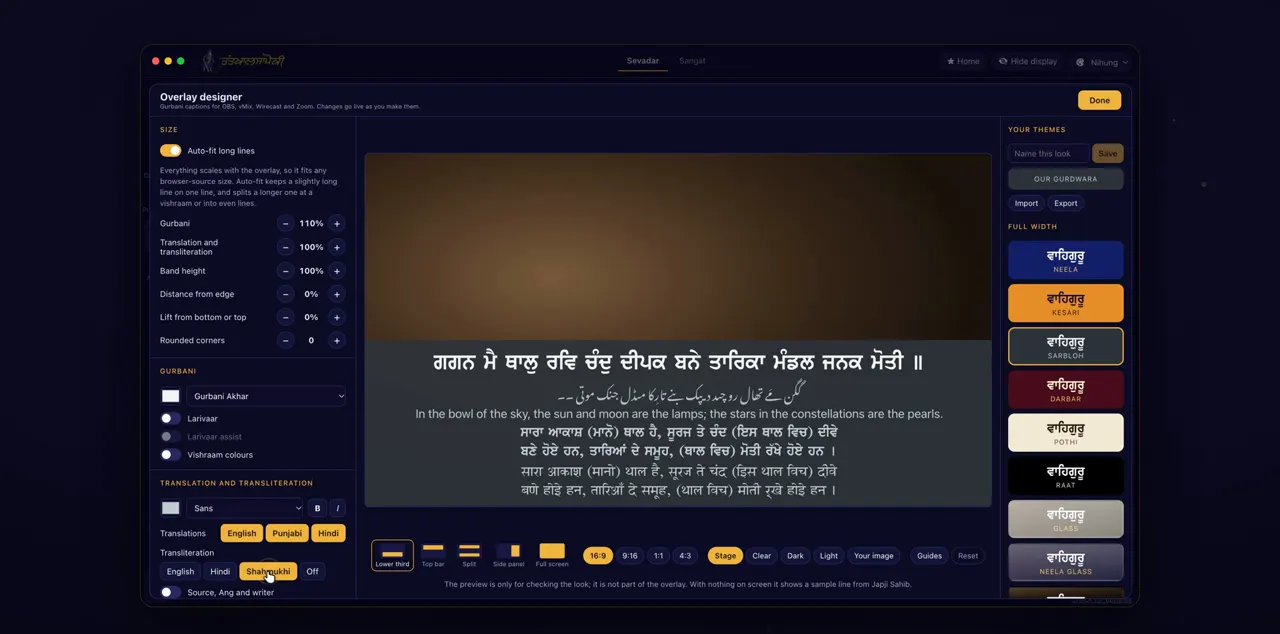
Set the size, the Gurbani font, the translations, and transliteration in English, Hindi or Shahmukhi.
Under Size you can also turn on Auto-fit long lines and change the translation size, band, margin, lift and corners. Under Gurbani you can set the colour and the font, larivaar, and vishraam colours. Translations come in English, Punjabi and Hindi.
Name strip and key colour
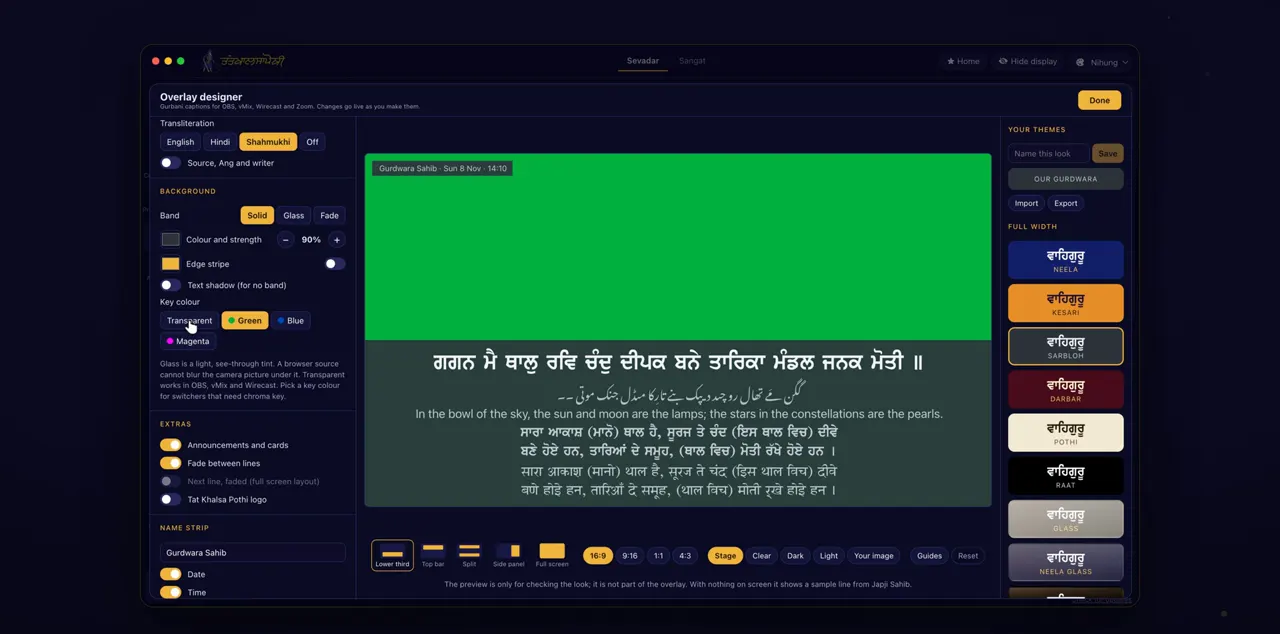
Add a name strip with your Gurdwara's name, the date and the time, and pick a key colour if your software needs one.
Name strip takes the Gurdwara or event name, the date and the time, and lets you choose a corner. Key colour is under Background, with Transparent, Green, Blue and Magenta. Leave it on Transparent unless your software keys out a colour.
9:16 and the guides
For a vertical stream, switch the preview to nine by sixteen and turn on the guides. The shaded parts are covered on Shorts and Reels.
The preview sizes are 16:9, 9:16, 1:1 and 4:3, and Guides can also show the title-safe area.
Tips
- Save a theme for each kind of programme, for example kirtan and katha, so you can switch between them.
- Export your themes before you move to a new computer, then Import them there.
- Under Extras you can add announcements and cards, a fade, the next line in Full screen, and the Tat Khalsa Pothi logo.
Questions
Do I need to restart OBS after a change?
No. Changes go live as you make them, so the captions follow the designer straight away.
Can I use my theme on another computer?
Yes. Click Export under Your themes to save them, then use Import on the other computer.
What is the key colour for?
Some streaming software needs a solid colour behind the captions to cut out. Pick Green, Blue or Magenta if yours does. Otherwise leave it on Transparent.