
Any TV or laptop on the same Wi-Fi can show the Gurbani too, as an extra screen. Here's how.
Before you start
- Tat Khalsa Pothi Desktop open on the laptop that runs the screen.
- A TV or laptop with a web browser.
- Both devices on the same Wi-Fi, or on the same phone hotspot.
Step by step
Allow phone remotes
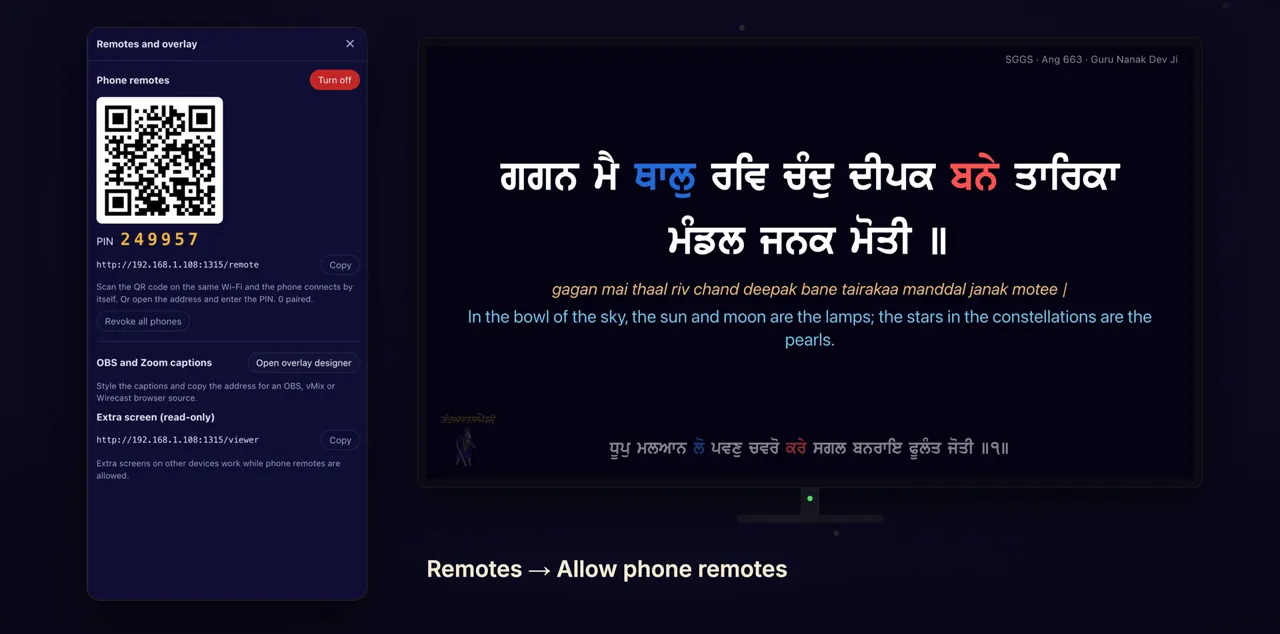
Open Remotes on the left. Extra screens work while phone remotes are allowed, so click Allow phone remotes.
Remotes is on the rail down the left of the window. If phone remotes are already allowed, the button reads Turn off, and you can go straight to the next step. The first time, your computer may ask whether Tat Khalsa Pothi can accept connections; allow it, as in the guide Use a phone as a remote.
Copy the address
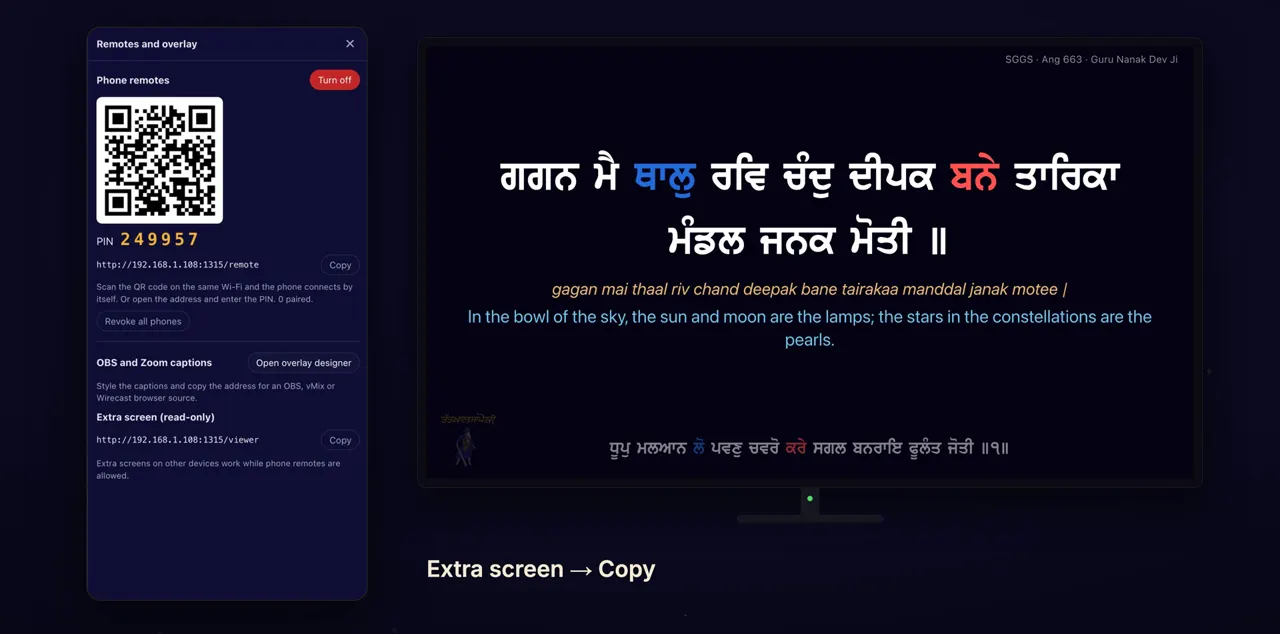
Under Extra screen, copy the address.
The section is called Extra screen (read-only), in the Remotes panel. The address starts with http:// and ends in /viewer. If you can't paste on the other device, type the address exactly as it appears.
Open it on the other device
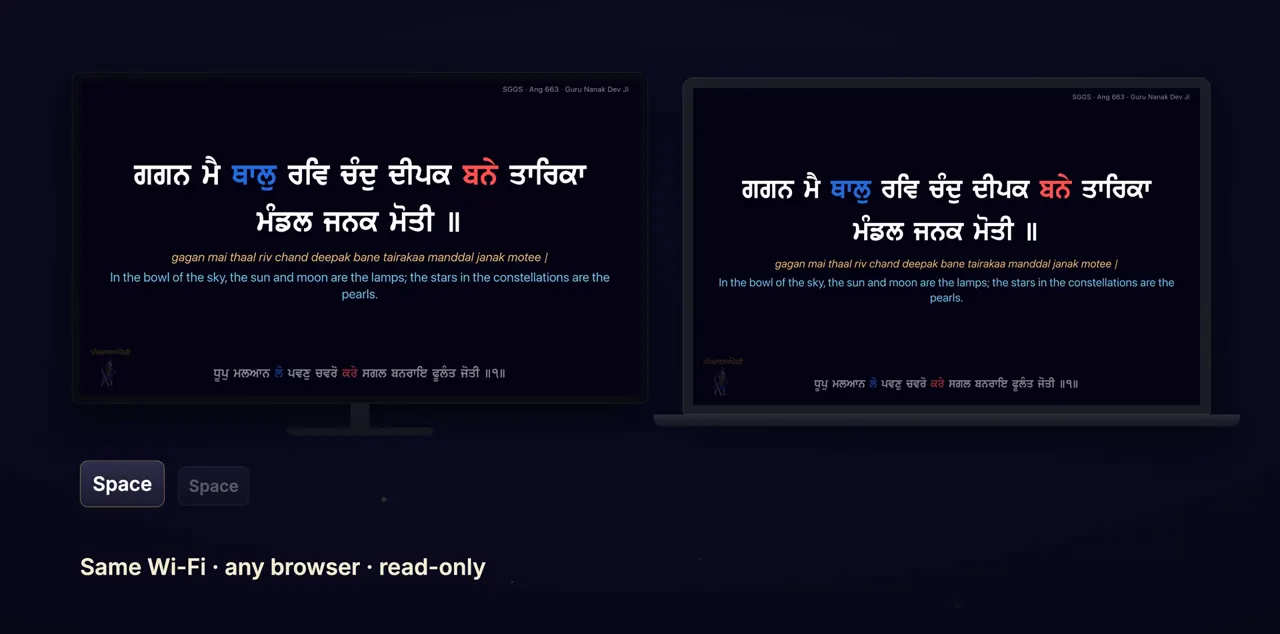
On the other device, open that address in a browser. It shows what's on the screen and follows along, read-only.
The extra screen has no buttons. Everything you show from the laptop, or from a phone remote, appears on it too.
Tips
- Extra screens need phone remotes allowed, so leave them on for as long as you need the extra screen.
- If the other device won't connect, check it is on the same Wi-Fi. Some Gurdwara routers keep devices apart; a phone hotspot for both the laptop and the device gets round this.
Questions
Can someone change the Gurbani from the extra screen?
No. The extra screen is read-only. It shows what's on the screen and follows along, with no controls.
Do I need to install anything on the TV?
No. Open the address in the browser on the TV or laptop.
Does the extra screen work over the internet?
No. Extra screens work over the local network only, so the device must be on the same Wi-Fi as the laptop, or on the same phone hotspot.