
During kirtan, you can run the whole screen from the keyboard. Here's what each key does.
Before you start
- Tat Khalsa Pothi Desktop installed on your Mac or Windows computer.
- A shabad open on the screen. Find a shabad shows how to open one from search.
Step by step
Out to a new line, back to the home line
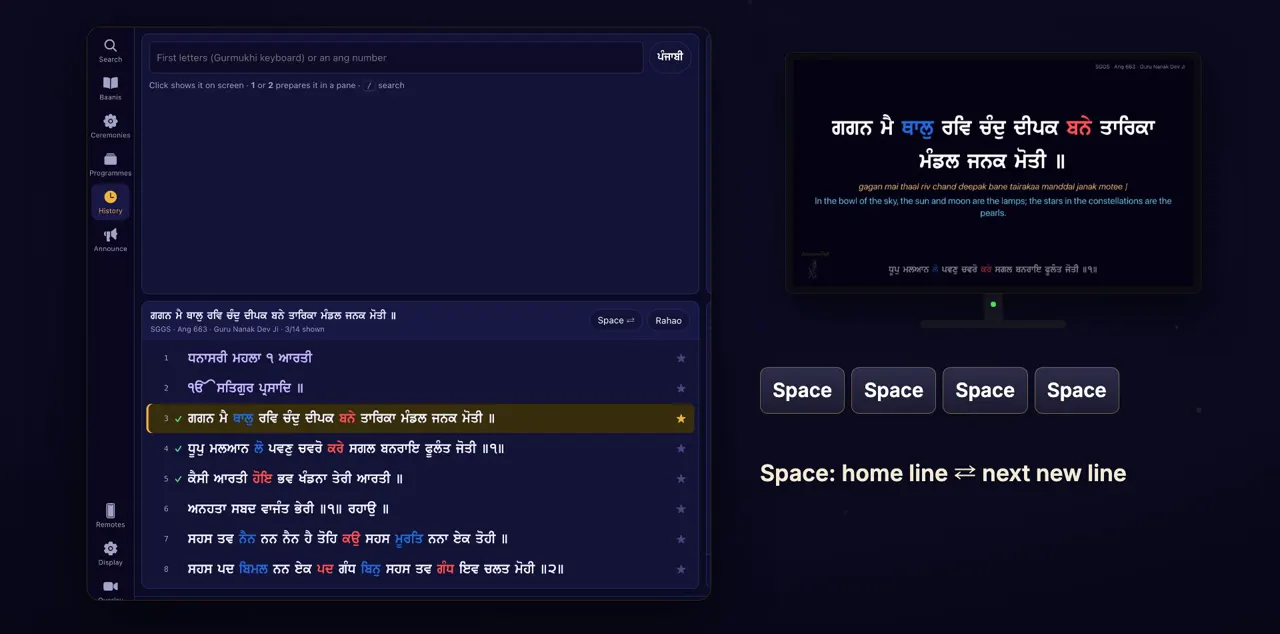
Press Space to go to the next line not shown yet. Press it again to come back to the home line. That's how kirtan moves: out to a new line, then back to the main one.
This works when the shabad has a home line. When you open a shabad from search, the line you searched for becomes the home line, marked with a star in the line list. With no home line, Space simply goes to the next line.
The checkmarks
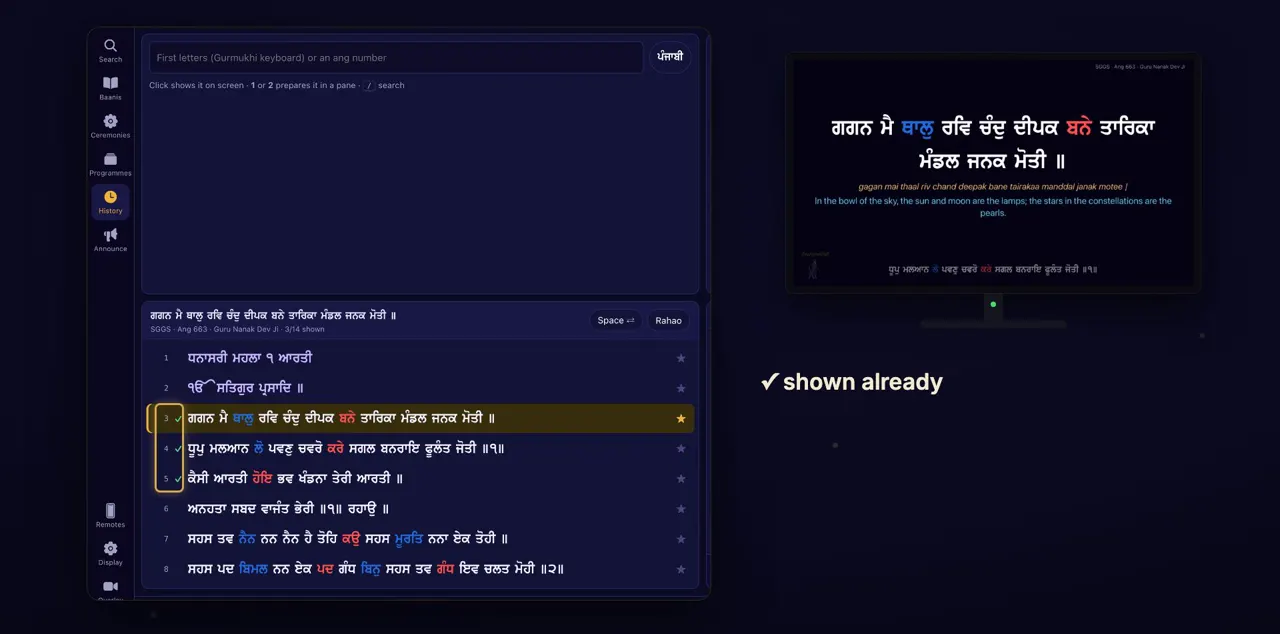
Every line you've shown gets a checkmark, so you can see where the kirtan has been.
The checkmarks appear in the line list in the app. Space uses them to find the next line that is still new.
Arrows, H and R
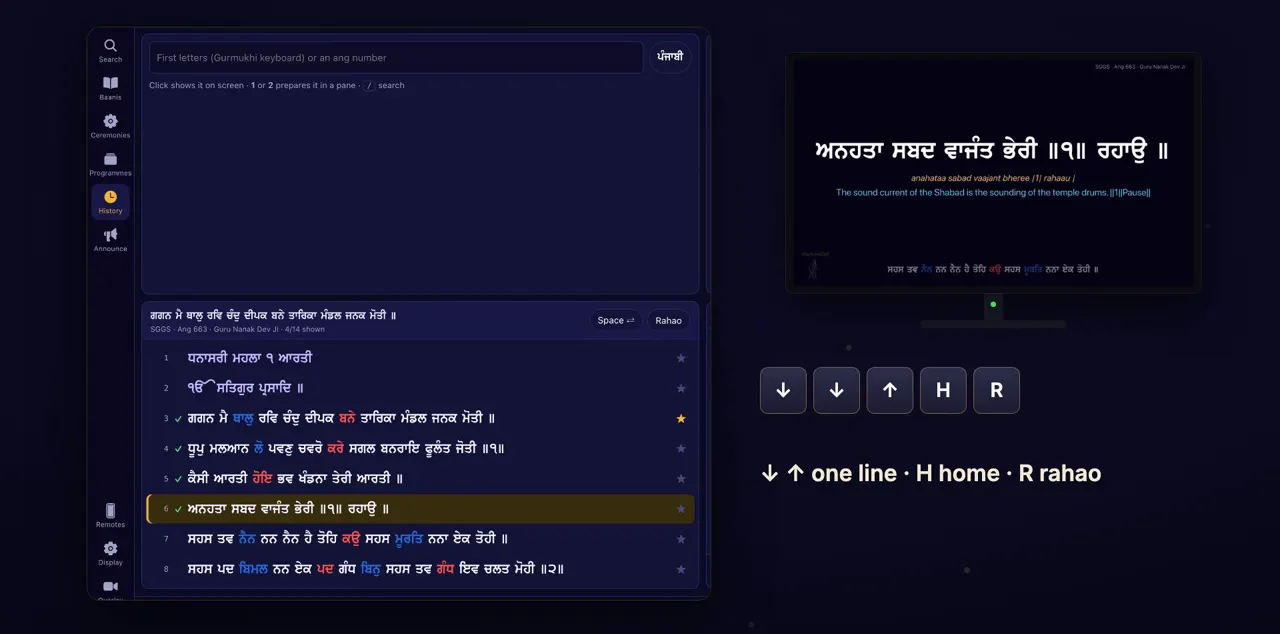
The down and up arrows move one line at a time. H goes back to the home line, and R jumps to the rahao.
The right and left arrows do the same as down and up, and so do Page Down and Page Up.
Jump to a line by its number
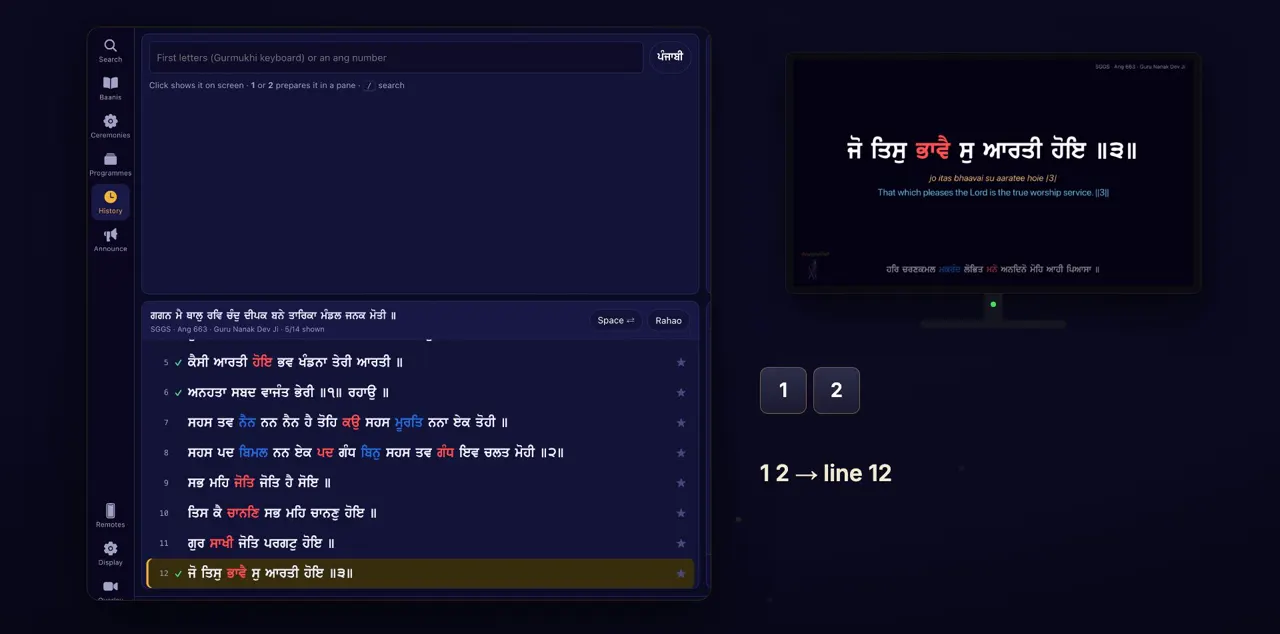
To jump anywhere, type the line's number. One, then two, goes to line twelve.
A number that can't grow into a longer one jumps at once: in a 14-line shabad, 3 goes straight to line 3. Otherwise the app waits a moment for a second digit, so type both digits one after the other.
Hide the display
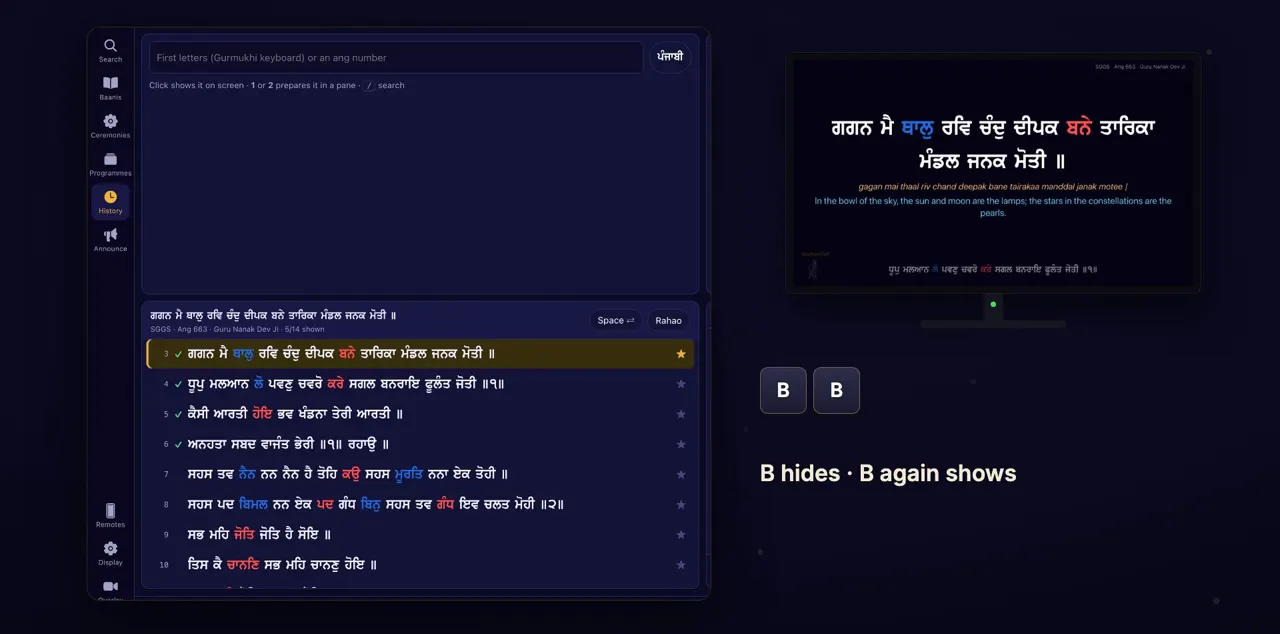
B blanks the projector. Press B again to bring the Gurbani back.
The background stays on the projector while the Gurbani is hidden, so the room doesn't flash.
Change how it looks
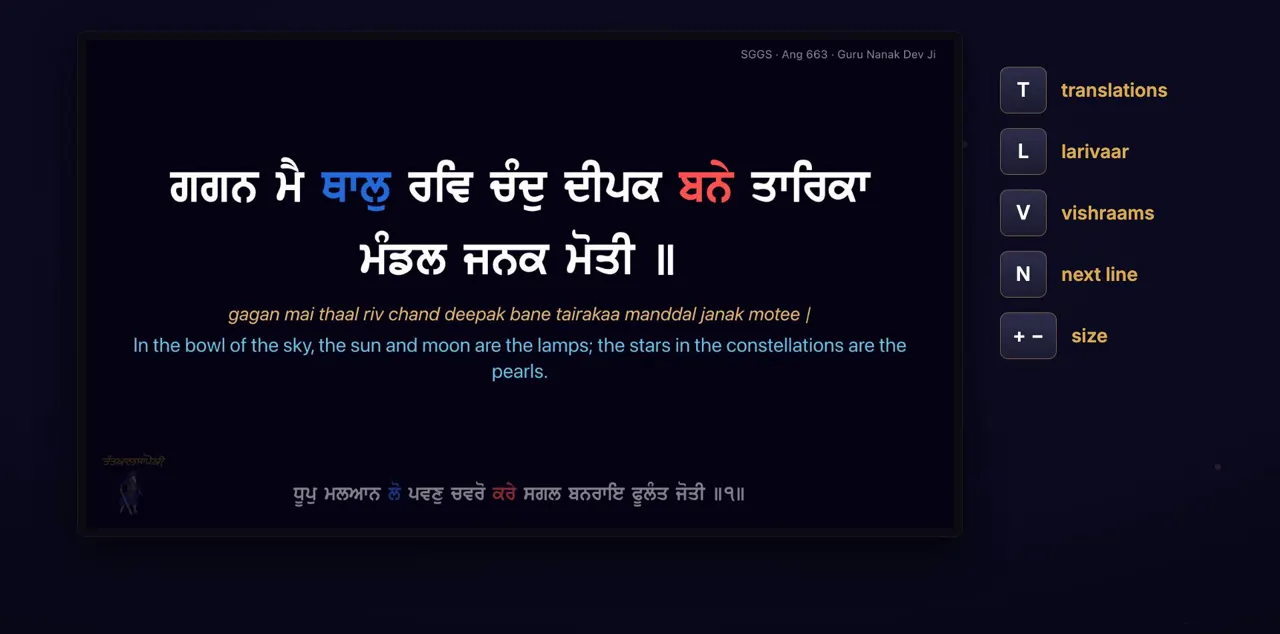
A few keys change how it looks. T turns the translations off and on. L joins the words as larivaar. V changes the vishraam marks. N shows or hides the next line. And + and − change the size.
T brings back whichever translations were showing before. V steps through three styles: coloured, spaces, then off. Plus and minus change the size in small steps, so you may need to press them a few times.
The full list
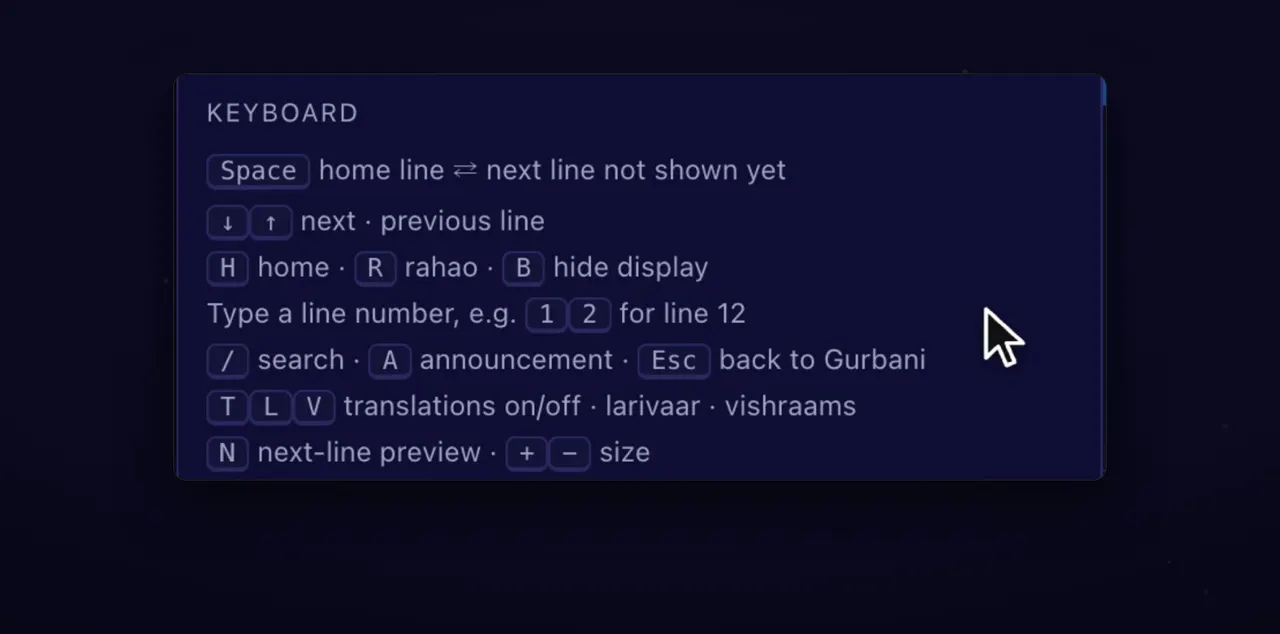
You'll find every key under Display, in the Keyboard list.
Click Display in the rail on the left of the app, then scroll down to the Keyboard list. It also lists / for search, A for an announcement and Esc to go back to Gurbani.
Tips
- The keys don't work while the cursor is in a text box, such as the search box.
- Press / to go to the search box from anywhere.
Questions
Why does Space keep coming back to the same line?
That's the kirtan flow. On the home line, Space goes to the next line not shown yet; on any other line, it goes back to the home line. To move on without going home, use the down arrow.
Does B turn the projector off?
No. It hides the Gurbani and leaves the background on the screen, so the room doesn't flash. Press B again to bring the Gurbani back.
I typed 1 and 2 but it went to line 1. Why?
The app waits only a moment for the second digit. Type the two digits one straight after the other.
Why does nothing happen when I press a key?
The keys don't work while the cursor is in a text box, such as the search box. Move out of the box, then press the key again.