
Nitnem and many other baanis are ready in the app. Here's how to open one.
Before you start
- Tat Khalsa Pothi Desktop installed on your Mac or Windows computer.
- Your projector or screen connected, because a baani goes on the screen as soon as you click it.
Step by step
The pothis
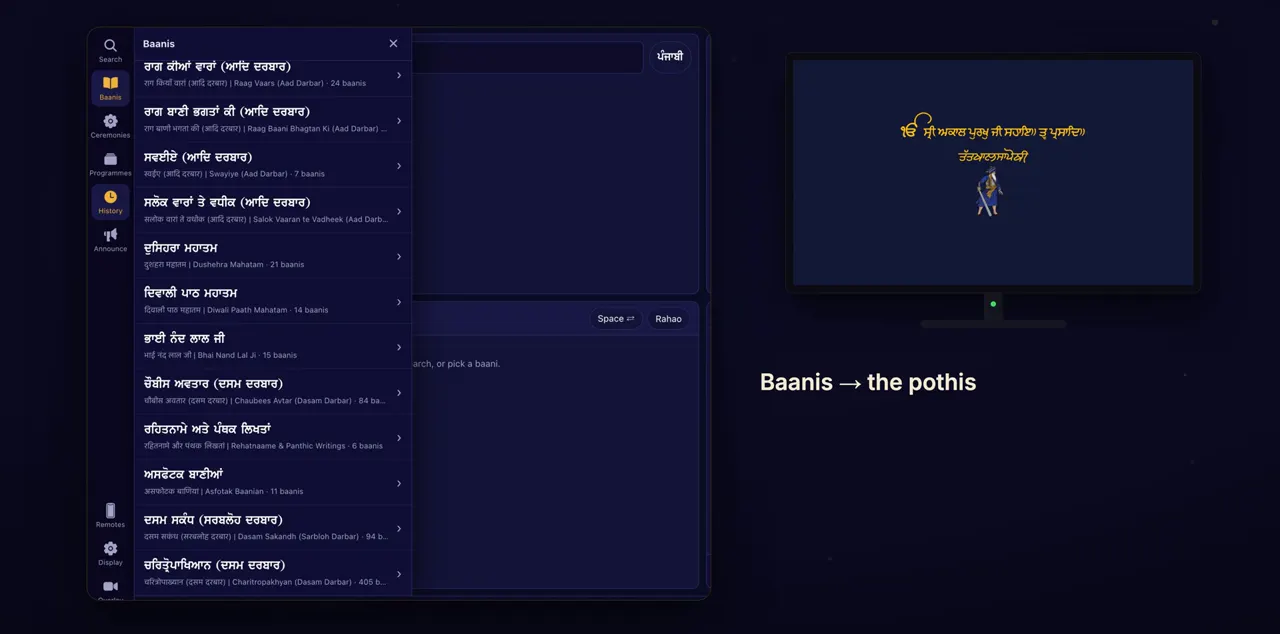
Click Baanis on the left. It lists the pothis: Nitnem in several maryadas, and more.
Baanis is in the rail down the left side of the app. Each pothi in the list shows how many baanis it has. The list includes Nitnem, Nitnem (Dal Panth), Nitnem (Taksali Gutka Sahib), Sri Guru Teg Bahadur Sahib Ji and the Sundar Pothis, so scroll down to see them all.
A pothi
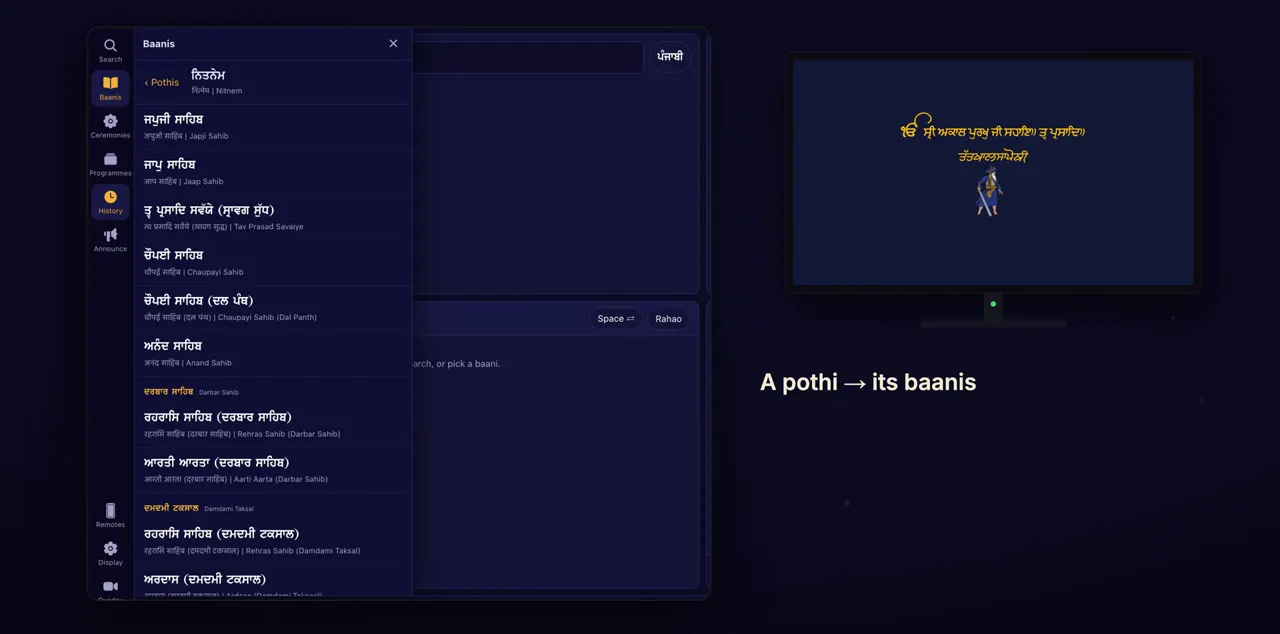
Click a pothi to see its baanis.
Where a pothi has sections, its baanis are grouped under a title for each section.
A baani, from its first line
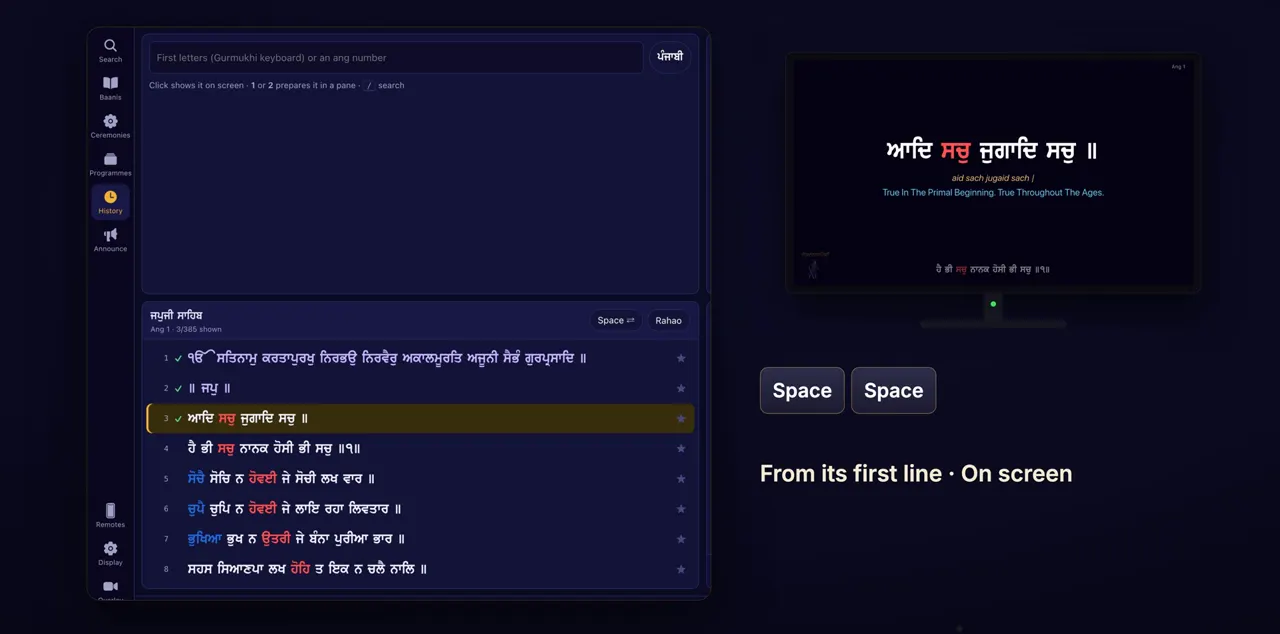
Click a baani. It opens on the screen from its first line, and is marked On screen. Press Space to read on.
The baani goes on the screen straight away, so click it only when you're ready to show it. A baani has no home line, so each press of Space shows the next line.
Back to the pothis
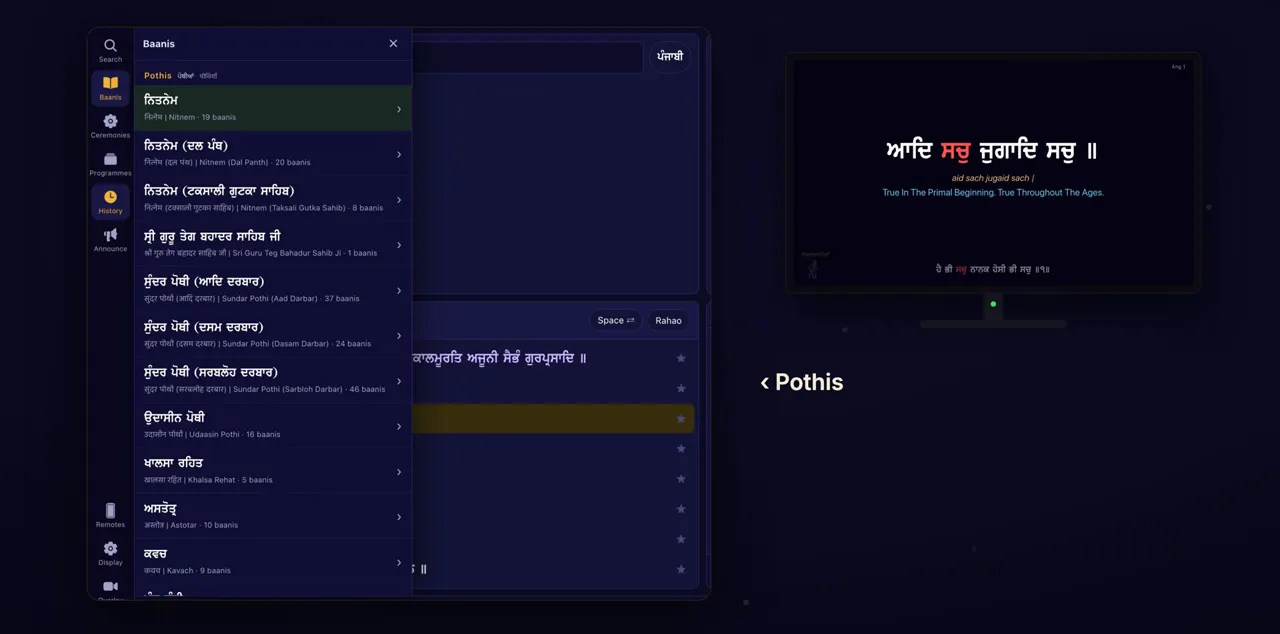
To choose from another pothi, go back with Pothis, at the top.
Pothis, with an arrow before it, is at the top of the list of baanis.
Tips
- The down and up arrows move one line at a time, as in a shabad.
- Press B to hide the display between baanis, and B again to bring it back.
Questions
Which Nitnem is in the app?
Nitnem comes in several maryadas, each as its own pothi: Nitnem, Nitnem (Dal Panth) and Nitnem (Taksali Gutka Sahib). Open the one your Gurdwara follows.
How do I know which baani is on the screen?
The baani that is open is marked On screen in the list of baanis.
Does Space go back to a home line in a baani?
No. A baani reads like a paath, with no home line, so Space shows the next line each time.